

Meta Quest VR Beginner’s Guide: 12 Tips for Comfortable and Enjoyable VR Gaming
Imagine walking into a virtual supermarket, picking up products with your own hands, organizing shelves, and interacting with customers as though you were standing inside the store.
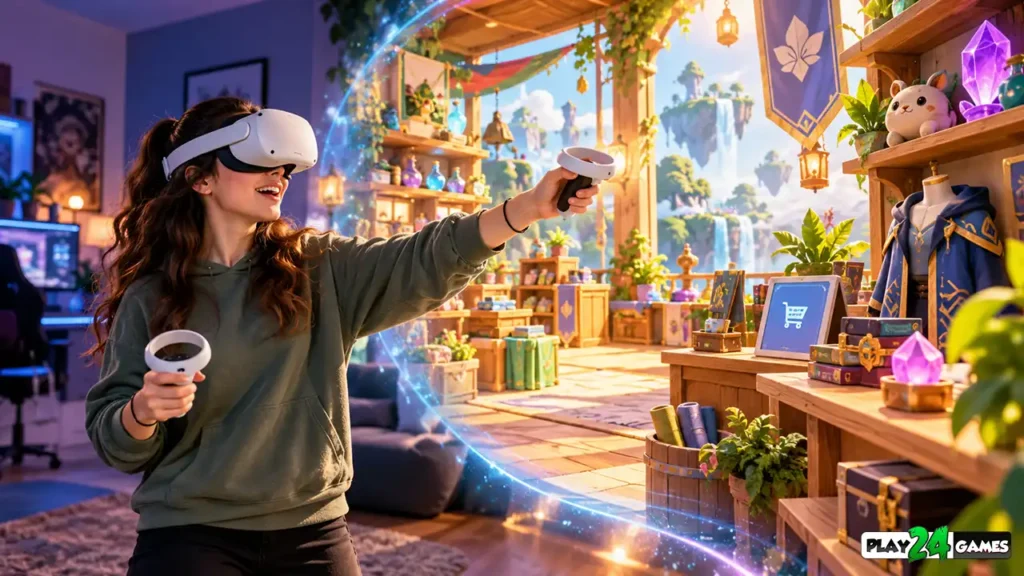
Or picture yourself exploring a colorful cosplay shop, examining collectibles, and arranging merchandise in a fully interactive 3D environment.
This is what makes virtual reality gaming different from traditional gaming.
Instead of watching the action through a television or smartphone screen, you experience the game world from a first-person perspective.
With a Meta Quest VR headset, players can explore immersive environments, interact with virtual objects, and experience different types of games without requiring a separate gaming PC for compatible standalone titles.
However, entering virtual reality for the first time can feel unfamiliar.
You may need time to understand the controls, adjust the headset, or become comfortable moving through virtual environments.
The good news is that a few simple preparations can make your first VR gaming sessions considerably more enjoyable.
In this Meta Quest VR beginner’s guide, we’ll explore 12 practical tips covering headset setup, comfortable movement, game selection, and common mistakes to avoid.
1. Understand How Meta Quest VR Gaming Works
Before starting your first game, it helps to understand what makes VR different from traditional gaming.
In a conventional video game, you control a character while watching the action on a flat screen.
In virtual reality, the headset tracks your head movement and adjusts your view of the digital environment.
When you look left, right, up, or down, the virtual world responds accordingly.
How Do You Interact With VR Games?
Depending on the headset and game, interactions may involve motion controllers, supported hand tracking, or other input methods.
For example, in a VR shop-management game, you might use a controller to select an item, pick it up, and place it on a shelf.
Some experiences support natural hand interactions, allowing players to manipulate virtual objects without holding controllers.
However, not every game supports every input method.
Always check the game’s compatibility information and control instructions.
Do You Need a Gaming PC?
Compatible standalone Meta Quest games run directly on the headset.
A gaming PC is only necessary for experiences that specifically require PC VR or when using optional PC-connected functionality.
This makes standalone VR particularly convenient for players who want to begin gaming without assembling an additional computer setup.
2. Prepare a Safe VR Gaming Space
One of the most important preparations happens before putting on the headset.
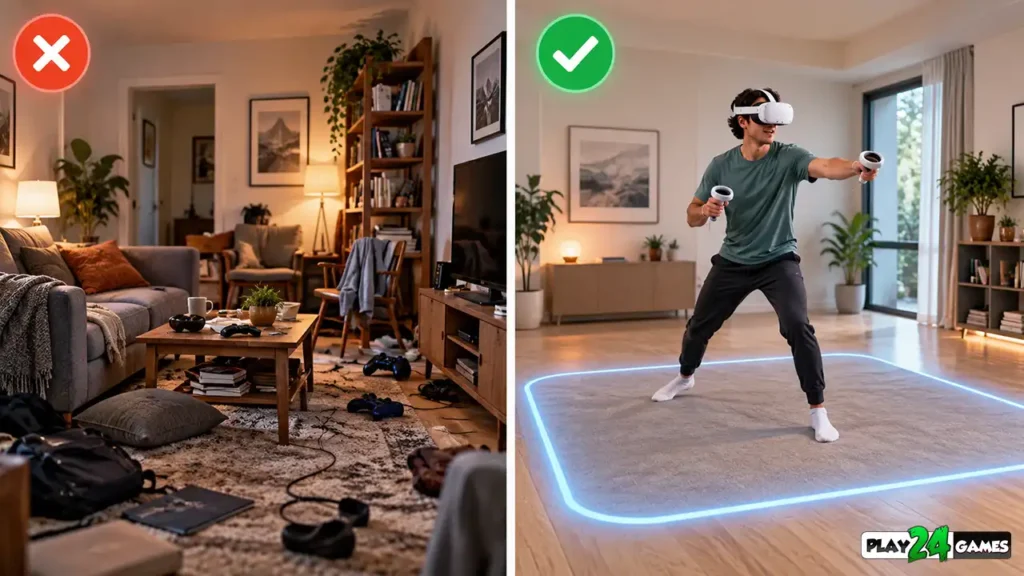
In VR, your eyes are focused on a virtual environment.
You may see a digital shop, a racing environment, or an entirely fictional world instead of the physical room around you.
That means nearby furniture and obstacles can become difficult to notice.
Clear Your Play Area
Before playing, remove unnecessary objects from the area.
Pay particular attention to chairs, tables, loose cables, fragile decorations, and anything that could cause you to trip.
Make sure you have enough room to move your arms comfortably.
If you’re standing, avoid playing too close to walls or furniture.
Understand VR Boundaries
Meta Quest supports boundary configurations designed to help users remain aware of their designated play space.
Two common approaches are:
Stationary: Suitable for experiences played while sitting or standing in a relatively small area.
Roomscale: Suitable for experiences where players physically move around a larger space.
Meta’s design documentation recommends approximately 2 × 2 meters or more for roomscale experiences, although individual games may have different requirements. Meta for Developers
Always follow your headset’s boundary setup instructions.
A boundary is an additional safety aid, not a substitute for keeping the physical area clear.
3. Adjust Your Headset for a Comfortable Fit
A headset that isn’t positioned correctly can make even a visually impressive VR game difficult to enjoy.
If the device sits too low, the image may appear blurry.
If the strap is too tight, it may create unnecessary pressure.
Position the Headset Properly
Start by adjusting the headset so the display appears clear.
Then adjust the strap to distribute its weight comfortably.
The headset should remain reasonably stable when you move your head without placing excessive pressure on your face.
Check Lens Alignment
Interpupillary distance, or IPD, refers to the distance between the centers of your pupils.
Appropriate lens alignment can improve visual clarity and comfort.
Meta’s official comfort guidance recommends adjusting IPD to match the user’s eyes where the headset provides that adjustment. Meta for Developers
The exact adjustment method depends on the Quest model.
Follow the instructions provided for your particular device.
If the image remains uncomfortable or unclear, remove the headset and check the fit before continuing.
4. Start With Short VR Gaming Sessions
When you first experience VR, it’s tempting to explore everything immediately.
You might want to play several games, test different movement systems, and spend a long time examining virtual environments.
However, new players should give themselves time to become familiar with the experience.
Begin Gradually
Start with a brief session in a comfortable, low-intensity experience.
Pay attention to how you feel while moving your head, interacting with objects, and navigating the environment.
Take breaks between sessions.
There isn’t one session length that works for everyone.
Some players become comfortable quickly, while others require more time.
Recognize Discomfort Early
If you experience nausea, dizziness, headaches, eye strain, or disorientation, stop playing and remove the headset.
Rest until the symptoms have fully resolved.
Don’t attempt to force yourself through discomfort.
Meta’s health and comfort guidance recommends taking breaks and avoiding further exposure while discomfort persists. Meta for Developers
A comfortable introduction is more valuable than trying to complete a long gaming session immediately.
5. Choose Beginner-Friendly VR Games
Not every VR game provides the same level of physical or visual intensity.
Some games involve rapid movement, sudden turns, or fast-paced action.
Others focus on slower activities, exploration, and object interaction.
Consider Simulation Games
Simulation games can be an appealing starting point for players who enjoy structured activities.
For example, a virtual shop simulator may involve organizing products, serving customers, and managing a business.
These activities offer clear objectives and opportunities to become familiar with VR interactions.
However, the game’s movement system still matters.
A slow-paced simulation can cause discomfort if its camera movement doesn’t suit the player.
Explore Different Genres
Popular VR experiences include:
- Shop-management and business simulators.
- Puzzle and exploration games.
- Creative building experiences.
- Sports and rhythm games.
- Racing and action games.
- Social and multiplayer experiences.
Start with games that match your interests and preferred level of movement.
As you become more familiar with VR, you can explore experiences with more demanding controls.
6. Learn the Difference Between Teleport and Smooth Movement
Movement is one of the most important comfort considerations in virtual reality.
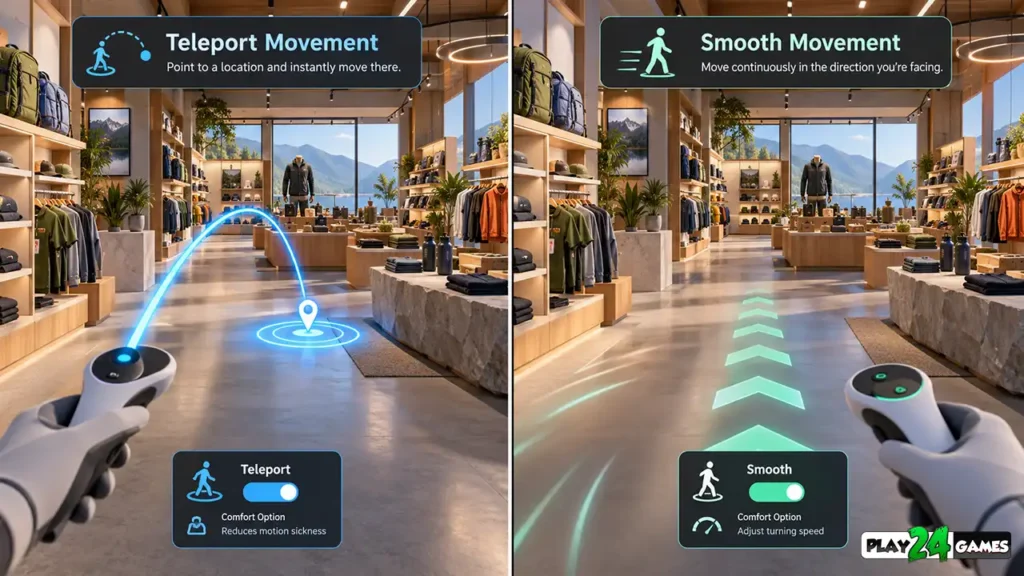
In traditional games, moving a joystick causes the character to travel through the environment.
In VR, the same action can create a sensation of movement even when your physical body remains stationary.
This mismatch can contribute to motion discomfort.
Teleport Movement
Teleportation allows players to select a destination and move there without continuously traveling through the intervening space.
This can reduce the visual motion associated with traditional joystick movement.
It is often a useful option for beginners.
Smooth Movement
Smooth movement allows players to travel continuously through the environment.
It can feel natural to experienced players who prefer traditional first-person controls.
However, it may also cause discomfort for some users.
Meta’s locomotion guidance identifies teleportation as a generally more comfort-oriented option while acknowledging that individual preferences vary. Meta for Developers
Beginner tip: If a game offers both options, try teleport movement first.
You can experiment with smooth movement later if you feel comfortable.
7. Use Snap Turning Instead of Smooth Turning
Turning is another important part of VR navigation.
Some games allow players to rotate their virtual viewpoint using a controller.
There are two common approaches.
Snap Turning
Snap turning rotates the view in defined increments.
For example, a controller input might rotate the virtual camera by a fixed angle.
Because the view changes without prolonged rotational movement, snap turning can be more comfortable for some players.
Smooth Turning
Smooth turning rotates the virtual camera continuously.
This may feel more natural to players familiar with traditional first-person games.
However, continuous rotation can create additional visual motion.
Meta’s September 8, 2026 locomotion guidance recommends providing snap and smooth turning as user-selectable options, with snap turning serving as a comfort-oriented choice. Meta for Developers
For your first VR sessions, consider starting with snap turning if the game supports it.
8. Learn the Controller Buttons Before Complex Gameplay
VR controllers can feel unfamiliar when you’re accustomed to a keyboard, mouse, or touchscreen.
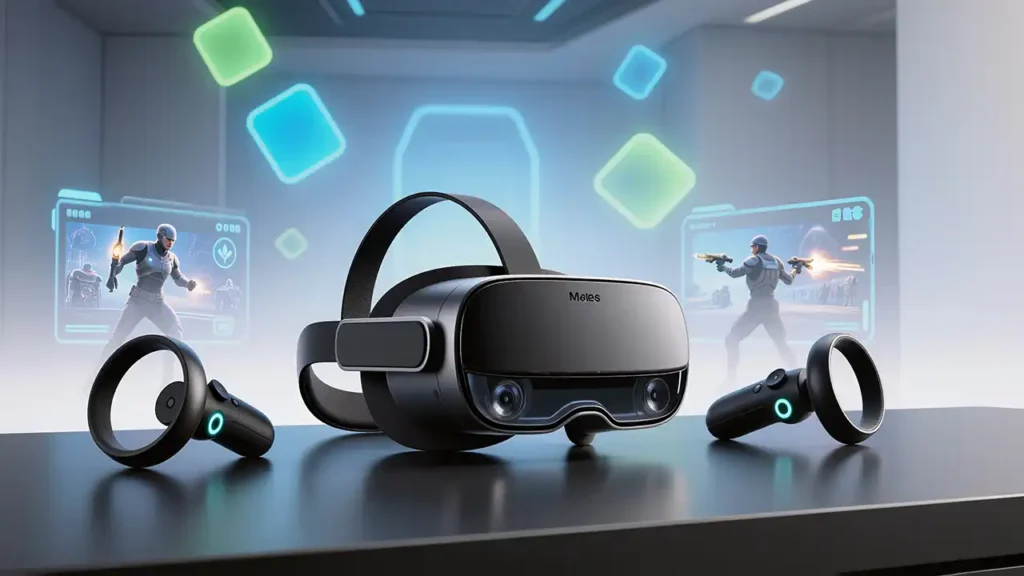
Depending on the headset and game, controllers may use triggers, grip buttons, thumbsticks, and other inputs.
Practice Basic Interactions
Before attempting complicated gameplay, become comfortable with essential actions.
Try pointing at objects, selecting menu options, grabbing virtual items, and releasing them.
Learn how to pause the game and open its settings.
Also identify how to return to the headset’s system interface.
Recenter Your View When Necessary
Sometimes a virtual menu or gameplay area may appear in an inconvenient position.
Many Quest experiences support recentering the view.
Meta’s documentation describes holding the Meta button on the right controller to recenter supported experiences. Meta for Developers
Exact behavior can vary with the headset, application, and current system interface.
Recenter while positioned safely inside your play area.
This can make interactions easier without requiring unnecessary physical movement.
9. Choose Between Sitting and Standing
One advantage of VR is that different experiences can support different play styles.
Some games are designed around physical movement.
Others can be enjoyed while seated.
Seated VR Gaming
Seated play may be suitable for relaxing simulations, certain puzzle games, and experiences that don’t require extensive physical movement.
Use a stable chair and make sure nearby furniture won’t interfere with controller movement.
Check whether the game officially supports seated play.
Standing VR Gaming
Standing can provide more freedom for reaching and interacting with virtual objects.
For example, arranging products on shelves may feel intuitive when you’re standing.
However, standing for extended periods can become tiring.
Meta’s accessibility guidance recommends supporting seated experiences where practical and providing suitable controls for players with different movement needs. Meta for Developers
The best position depends on the game’s requirements and your comfort.
10. Pay Attention to Smooth Gameplay and Visual Stability
Performance matters in every game, but it is particularly important in virtual reality.
When you move your head, the virtual environment should respond smoothly.
If the displayed scene struggles to keep up, the experience can become uncomfortable.
Why Consistent Performance Matters
VR games must render a suitable view for each eye while responding to headset tracking.
Inconsistent frame delivery can cause visible judder or other distracting effects.
Meta’s comfort guidance emphasizes maintaining consistent frame rates and accurate head tracking. Meta for Developers
What Can Players Do?
Keep the headset software and games updated.
Use the game’s official graphics or comfort settings where available.
Avoid running unnecessary demanding applications during gameplay.
If an experience repeatedly stutters, check whether the issue is specific to that game.
Restarting the headset may help resolve temporary problems, but it won’t fix every performance issue.
Don’t install untrusted modifications that promise unrealistic performance improvements.
11. Understand Why VR Simulation Games Feel Different
Virtual reality can change how players experience familiar game genres.
Consider a traditional supermarket simulation game.
On a smartphone, you might tap a product and drag it toward a shelf.
In VR, a similar interaction can involve reaching toward the product, grabbing it with a controller, and placing it in a three-dimensional space.
The underlying objective may be similar, but the interaction feels different.
Physical Interaction Adds a New Dimension
VR can make ordinary activities more engaging through spatial interaction.
For example, players may enjoy:
- Examining merchandise from different angles.
- Organizing objects in a virtual store.
- Interacting with customers and equipment.
- Exploring a shop at a more natural scale.
- Managing inventory through immersive controls.
These mechanics are particularly relevant to cozy and business-simulation games.
Play24Games and VR Simulation
At Play24Games, we’re expanding beyond traditional mobile gaming with immersive VR experiences.
Our announced Cosplay Shop Simulator VR project brings an anime-inspired shop-management concept into virtual reality.

The experience is designed around managing merchandise, organizing a store, and interacting with products in an immersive environment.
You can learn more in our Cosplay Shop Simulator Meta Quest announcement.
We’re also developing Bakery Supermarket Simulator VR, which focuses on bakery and supermarket management.
The planned experience includes stocking shelves, interacting with bakery products, and managing store activities.
Read the Bakery Supermarket Simulator VR announcement for more information.
These projects illustrate how familiar simulation concepts can be adapted for immersive VR interaction.
Availability and release information should be checked through our latest official announcements.
12. Explore VR at Your Own Pace
One of the best ways to enjoy virtual reality is to avoid treating every session as a challenge.
You don’t need to master every controller function immediately.
You also don’t need to begin with the most intense action game available.
Build Familiarity Gradually
Start with an environment that feels manageable.
Practice interacting with objects.
Experiment with movement and turning options.
Adjust settings when necessary.
Once you’re comfortable, explore more complex games and interactions.
Make Comfort Part of Your Gaming Routine
Before each session, check the headset fit and physical play area.
Confirm that your boundary is correctly configured.
Take breaks when needed.
If you’re sharing the headset, allow each player to adjust the fit and relevant settings for themselves.
These habits help make VR gaming more approachable and enjoyable.
Common VR Gaming Mistakes Beginners Should Avoid
A common mistake is assuming that VR controls will feel exactly like traditional gaming controls.
Another is choosing smooth movement immediately without exploring more comfortable alternatives.
Players may also overlook the importance of clearing their physical play area.
Even when the virtual environment appears spacious, the actual room may contain furniture or other obstacles.
Wearing the headset too tightly, ignoring blurry visuals, or continuing to play after discomfort begins can also create unnecessary problems.
Finally, don’t assume that every VR game supports seated play, hand tracking, or identical controller layouts.
Check the game’s supported features before starting.
Meta Quest VR Beginner Settings Checklist
The following table provides useful starting recommendations.
| Setting | Beginner Recommendation |
|---|---|
| Play Area | Clear physical obstacles before playing |
| Boundary | Stationary or Roomscale, depending on the game |
| Headset Fit | Comfortable and stable |
| Lens Alignment | Adjust according to headset instructions |
| Movement | Teleport, if available |
| Turning | Snap Turn, if available |
| Play Position | Seated or standing, based on game support |
| Session Duration | Start briefly and take breaks as needed |
| Game Genre | Begin with manageable, lower-intensity experiences |
| Performance | Keep software updated and investigate persistent stuttering |
These recommendations are starting points rather than universal requirements.
The best settings depend on your headset, game, physical environment, and personal comfort.
Conclusion
Virtual reality offers a different way to experience games.
Instead of simply controlling a character through a screen, players can explore digital environments and interact with virtual objects from a first-person perspective.
However, enjoyable VR gaming begins with proper preparation.
Set up a clear play area, adjust your headset, learn the controls, and choose movement settings that feel comfortable.
Start with manageable experiences and gradually explore more complex games as you become familiar with virtual reality.
The best VR experience isn’t necessarily the most intense one. It’s the experience that feels engaging, comfortable, and enjoyable for you.
At Play24Games, we’re continuing to explore immersive gaming through Meta Quest simulation projects and interactive virtual environments.
Visit our VR Games page to discover our VR projects and follow upcoming announcements.
Frequently Asked Questions
1. Is Meta Quest suitable for beginners?
Yes. Meta Quest supports standalone VR gaming and offers experiences across different genres and intensity levels. Beginners should start with comfortable games, prepare a safe play area, and learn the headset’s controls before attempting more demanding experiences.
2. How can I reduce motion sickness while playing VR games?
Start with shorter sessions, use teleport movement and snap turning where available, and avoid games with intense artificial movement until you’re comfortable. If symptoms occur, stop playing and rest until they resolve.
3. Can I play Meta Quest games while sitting?
Many VR experiences support seated gameplay, but not all games offer the same options. Check the game’s supported play modes and use a stable chair with sufficient room for controller movement.
4. Do Meta Quest games require a gaming PC?
Compatible standalone Meta Quest games run directly on the headset without a separate gaming PC. PC VR experiences require additional compatible hardware and software.
5. What types of VR games are good for beginners?
Lower-intensity puzzle, exploration, creative, and simulation experiences can be good starting points. However, movement mechanics and comfort options matter more than genre alone.


[…] For a broader introduction, read the Play24Games Meta Quest VR Beginner’s Guide. […]
[…] can also read our Meta Quest VR beginner’s guide for additional information about headset setup, comfort, and gameplay […]
[…] For general headset preparation and comfort recommendations, read our Meta Quest VR beginner’s guide. […]