
Meta Quest VR UI Design: 10 Best Practices
Imagine entering a virtual supermarket through your Meta Quest headset.
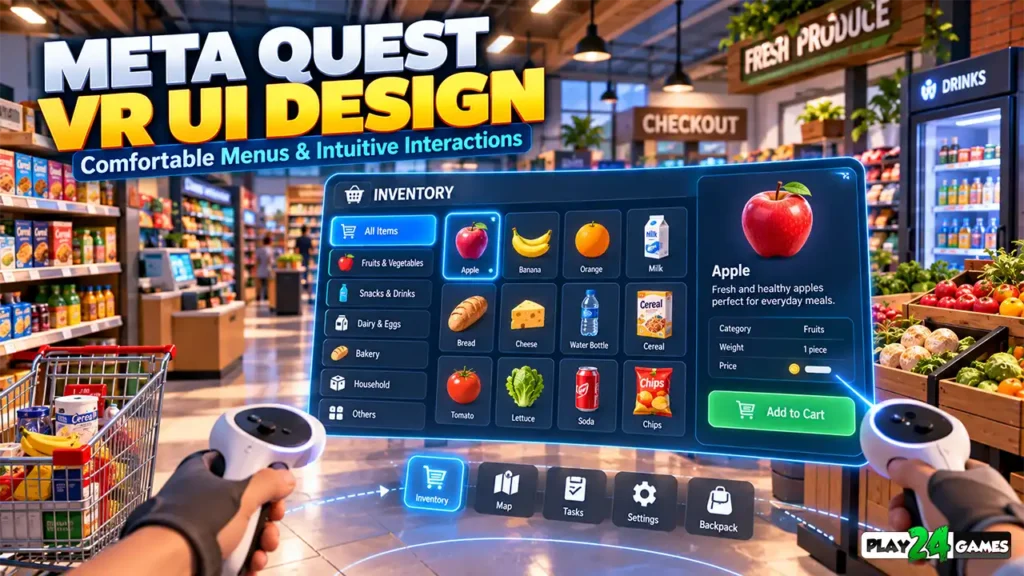
You walk toward a shelf, pick up a product, and prepare to restock the display.
Suddenly, an inventory menu appears.
The text is too small to read. The buttons are positioned far above your natural viewing angle, and selecting an item requires several attempts.
The environment may look impressive, but the interaction quickly becomes frustrating.
Now imagine the same experience with a different interface.
A clean inventory panel appears at a comfortable distance. Product names are readable, important actions are easy to identify, and buttons respond clearly when selected.
You can complete your task without repeatedly adjusting your position or struggling with the controls.
The difference isn’t necessarily the quality of the 3D environment. It’s the quality of the VR user interface.
In traditional mobile and PC games, interfaces are usually designed for flat screens.
Virtual reality introduces additional considerations.
Menus exist within a three-dimensional space. Players can move their heads, change their position, and interact through controllers or supported hand-tracking systems.
This makes Meta Quest VR UI design an important part of creating comfortable and enjoyable immersive games.
In this guide, we’ll explore practical principles for designing readable menus, intuitive interactions, accessible controls, and comfortable spatial interfaces.
1. Why VR UI Design Is Different From Mobile Game UI
A traditional mobile game displays its interface on a fixed screen.
Buttons, menus, and icons are positioned according to the screen’s dimensions.
The player interacts through touch.
In virtual reality, the situation is different.
The interface may appear as a floating panel, an object attached to the virtual environment, or a menu positioned near the player.
VR Interfaces Exist in Three-Dimensional Space
Consider a racing game.
On a smartphone, the speedometer might appear in the corner of the screen.
In VR, the speedometer could exist inside the vehicle’s dashboard.
Likewise, a shop-management game could display inventory information through a virtual tablet or an interactive panel inside the store.
These approaches can make interfaces feel like natural parts of the environment.
However, spatial interfaces introduce new design challenges.
Developers must consider viewing distance, text size, interaction reach, player height, and camera movement.
A visually attractive interface isn’t automatically comfortable to use.
2. Place VR Menus at Comfortable Viewing Distances
One of the most important VR interface decisions is where the menu appears.
A panel positioned too close may be uncomfortable to view.
A panel positioned too far away may make text difficult to read or buttons difficult to select.
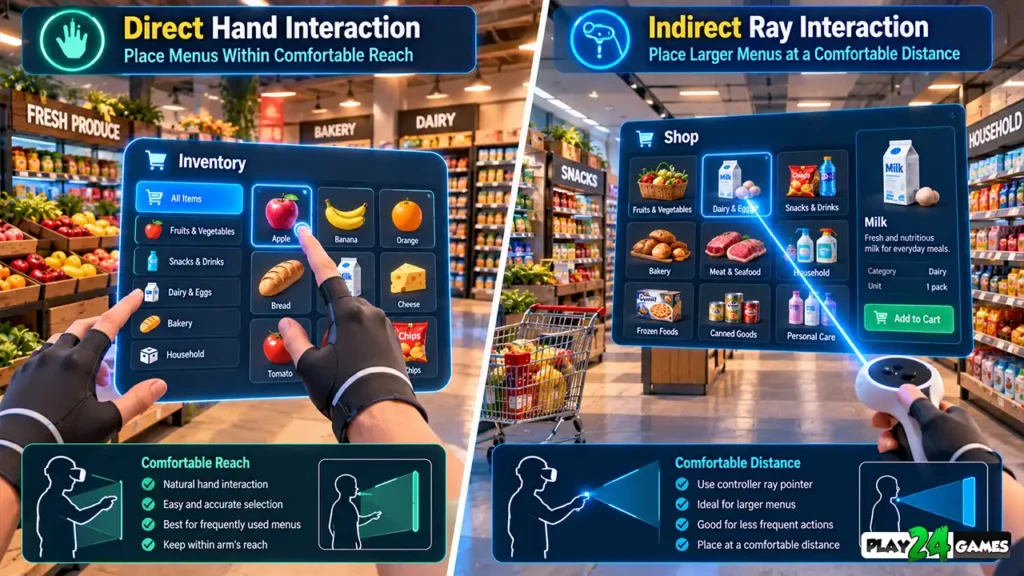
Direct Interaction Distance
When a menu is designed for direct hand interaction, players need to reach toward it.
Meta’s hand-interaction guidance recommends positioning touch-oriented interfaces approximately 42–46 centimeters from the user.
This provides a useful starting point for interfaces designed around reaching and touching.
However, the final position should account for player height, arm length, seated play, and individual comfort.
Indirect Interaction Distance
Some menus are designed for selection using a controller ray or another supported pointing method.
For these interactions, Meta identifies approximately 0.8–3 meters as a comfortable distance range.
These distances are guidance for particular interaction models, not universal rules for every VR interface. Meta for Developers
Practical Example
Imagine a virtual shop containing an inventory terminal.
If the player must physically press buttons, the interface should be within comfortable reach.
If the player selects inventory items using a controller pointer, the panel can be positioned farther away.
The interaction method should influence the placement.
3. Understand World-Locked and Head-Locked Interfaces
VR developers often choose between two important interface behaviors.
World-Locked UI
A world-locked interface remains positioned relative to the virtual environment.
For example, an inventory screen might appear on a wall inside a shop.
When the player turns their head, the interface remains in the same location.
This approach can help the menu feel like part of the game world.
Head-Locked UI
A head-locked interface follows the player’s viewpoint.
For example, a targeting indicator might remain near the center of the display.
However, attaching large menus directly to the player’s head movement can feel unnatural or distracting.
Which Approach Is Better?
World-locked interfaces are often preferable for substantial menus and information panels.
Head-locked elements can be useful for selected lightweight indicators.
Meta’s compositor-layer documentation recommends world-locked overlays for most use cases, with exceptions for small elements such as targeting reticles. Meta for Developers
For a VR shop simulator, a world-space inventory terminal may feel more appropriate than a large menu permanently following the player’s face.
4. Make Text Readable Inside the Headset
Text readability is a major part of VR usability.
A menu that looks clear on a computer monitor may become difficult to read inside a headset.
Use Clear Typography
Choose fonts designed for readability.
Simple sans-serif fonts with recognizable letter shapes are often effective.
Avoid overly decorative typography for important instructions, prices, settings, and gameplay information.
Create a Strong Visual Hierarchy
Important information should be immediately recognizable.
For example, a virtual inventory menu might contain:
Inventory
Product: Chocolate Box
Quantity: 12
Action: Restock Shelf
The player should quickly understand the product, available quantity, and required action.
Avoid Excessive Text
VR players shouldn’t need to read long paragraphs while standing inside an interactive environment.
Use concise instructions.
Break complex explanations into manageable steps.
Test on Actual Hardware
Meta’s typography guidance emphasizes that text should be tested on actual VR devices because headset displays and viewing conditions differ from conventional monitors. Meta for Developers
An interface that looks perfect inside a Unity Editor preview may require adjustments after headset testing.
5. Design Buttons That Are Easy to Select
Small buttons can create significant usability problems in VR.
Players may select interface elements through controller pointers, hand tracking, or other supported input methods.
These methods introduce different levels of targeting precision.
Increase Interactive Target Areas
The visible button doesn’t always need to occupy the entire interactive region.
Developers can provide additional invisible padding around a button.
This makes the control easier to select without requiring oversized artwork.
Leave Space Between Buttons
Buttons positioned too closely together increase the risk of accidental selections.
For hand-tracked interfaces, Meta recommends appropriately sized hit targets and sufficient spacing between neighboring interactive elements.
Its September 24, 2026 guidance identifies a minimum hit target of 48 dp at panel scale and approximately 12 mm of spacing between adjacent hand interactables. These values apply to the documented spatial hand-UI design system and should be validated in the actual game. Meta for Developers
Practical Example
Consider a virtual shop upgrade menu.
Instead of placing several tiny upgrade icons next to one another, use clearly separated buttons.
Each button should communicate its function through a recognizable icon and readable label.
The goal is to make the intended action easy to perform.
6. Choose the Right Interaction Method
Meta Quest games can support different interaction systems.
The appropriate method depends on the game’s design and supported hardware.
Controller-Based Interaction
Controllers provide physical buttons, triggers, and pointing capabilities.
They can be useful for navigating menus that contain numerous options.
For example, a player might point toward an inventory category and select it using a trigger.
Hand-Tracking Interaction
Supported hand tracking allows players to interact without holding controllers.
A player might reach toward a nearby virtual panel and select an option using a supported gesture.
This can create a natural interaction experience.
However, hand tracking has different limitations from controller input.
Tracking visibility, hand position, and gesture recognition can affect interaction reliability.
Hybrid Interaction
Some experiences support both direct and indirect interaction.
For example, a nearby panel may support touch, while a more distant panel supports ray-based selection.
Developers should make transitions predictable and avoid switching input behavior unexpectedly.
For a broader comparison, read our Meta Quest Hand Tracking vs Controllers Guide.
7. Provide Clear Feedback for Every Interaction
Imagine selecting a virtual button without receiving any response.
Did the action register?
Should you press it again?
Is the game loading?
Unclear feedback can make even simple interactions frustrating.
Visual Feedback
Buttons should communicate their current state.
For example, an interactive button might change appearance when highlighted, pressed, or disabled.
Audio Feedback
A short sound can confirm that an action was completed.
Audio should complement visual feedback rather than being the only indication that something happened.
Haptic Feedback
When supported, controller vibration can provide additional confirmation.
For example, a brief vibration might accompany a successful selection.
Example: Buying an Upgrade
In a hypothetical VR shop simulator, selecting an upgrade could produce a button animation, a confirmation sound, and an updated currency display.
These responses help the player understand that the purchase succeeded.
The interface should also clearly communicate when a purchase cannot be completed.
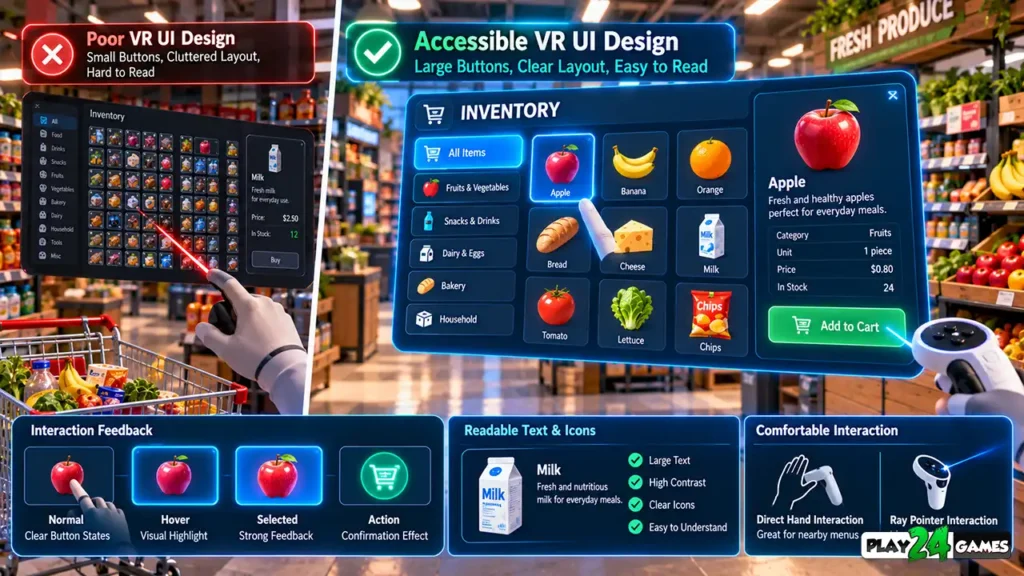
8. Design VR Interfaces for Accessibility
VR games should account for players with different physical abilities, visual requirements, and interaction preferences.
Accessibility isn’t limited to adding a settings menu.
It influences how players interact with the entire experience.
Support Comfortable Play Positions
Some players prefer standing.
Others may need or prefer seated gameplay.
Where practical, important interface elements should remain accessible from supported play positions.
Avoid placing essential controls where players must repeatedly bend, stretch, or reach uncomfortably.
Provide Readable Visual Information
Use sufficient contrast between text and backgrounds.
Avoid communicating important information through color alone.
For example, a locked upgrade should have a recognizable symbol or label rather than relying only on a red color.
Offer Alternative Interactions
Where feasible, support different ways to perform important actions.
A player who struggles with precise hand gestures may benefit from controller-based selection.
Meta’s accessibility guidance recommends simple controls, appropriate hit targets, clear feedback, and alternatives for users with different mobility needs. Meta for Developers
9. Avoid Interfaces That Interrupt Immersion
A VR interface should provide useful information without constantly demanding attention.
Imagine exploring a virtual store.
Every time the player approaches a shelf, a large menu appears directly in front of their face.
Although the menu contains useful information, its placement interrupts the experience.
Use Contextual Interfaces
Display information when it becomes relevant.
For example, product details might appear when the player selects an item.
Inventory information could remain hidden until the player opens the appropriate menu.
Keep Important Actions Discoverable
Avoid hiding essential controls behind complicated navigation.
Players should understand how to pause, resume, access settings, and exit relevant interactions.
Don’t Overload the View
Too many floating panels can make a virtual environment visually confusing.
Use a clear hierarchy.
Prioritize the information players need for their current task.
Meta’s immersive design guidance emphasizes balancing usability, comfort, and immersion through iterative testing. Meta for Developers
10. Consider Performance When Designing VR UI
A polished interface should also behave smoothly.
Complex UI animations, excessive transparency, unnecessary visual effects, and frequently changing interface elements can introduce rendering overhead.
This matters because VR applications must respond consistently to head movement.
Keep Animations Purposeful
Animations should explain transitions or confirm actions.
Avoid unnecessary movement that distracts from gameplay.
Review UI Rendering Costs
Developers should profile the interface alongside the rest of the game.
The exact performance impact depends on the rendering pipeline, UI implementation, and headset hardware.
Test During Real Gameplay
A menu may perform well when displayed alone.
However, it must also work correctly while the game renders environments, characters, physics interactions, and other systems.
Always test important menus in representative gameplay situations.
11. Practical Example: Designing a VR Shop Simulator Interface
Consider a hypothetical Meta Quest shop-management game.
The player manages inventory, organizes merchandise, serves customers, and purchases store upgrades.
Several interface systems are required.
Inventory Panel
The inventory panel should display product categories, quantities, and relevant actions.
A readable layout and predictable navigation can help players manage items efficiently.
Product Information
When the player selects a product, a compact information panel could display its name, price, and available quantity.
The panel should avoid blocking the product unnecessarily.
Upgrade Menu
Store upgrades may require a larger interface.
Clear button labels, purchase confirmations, and visible currency information can make these interactions easier to understand.
Settings Menu
The settings interface should provide access to relevant audio, comfort, and interaction options supported by the game.
These are illustrative design recommendations, not claims about features already implemented in a specific Play24Games title.
At Play24Games, we’re exploring immersive simulation experiences for Meta Quest.
Our VR portfolio includes the Store Simulator Cosplay Shop concept, which focuses on interactive shop management in a virtual environment.
Explore our VR Games Collection to learn more about our VR projects.
12. Test VR Interfaces With Real Players
Interface design should be evaluated through actual interaction.
A developer already familiar with the game may navigate its menus effortlessly.
A new player may encounter problems that weren’t obvious during development.
Observe First-Time Interactions
Ask a tester to complete a simple task without extensive instructions.
For example, they might need to open inventory, select a product, and return to gameplay.
Observe whether they understand the available controls.
Test Different Play Positions
Where supported, evaluate the interface while seated and standing.
Check whether important buttons remain accessible.
Evaluate Text Readability
Test whether players can comfortably read instructions and menu labels at the intended viewing distance.
Review Input Reliability
Check whether users accidentally select neighboring buttons.
Test controller interactions and hand tracking separately when both are supported.
Watch for Discomfort
If testers experience eye strain, dizziness, or other discomfort, stop the session and investigate the relevant design conditions.
Meta recommends designing VR experiences around player comfort and providing opportunities for breaks. Meta for Developers
Common VR UI Design Mistakes to Avoid
One mistake is copying a mobile game’s interface directly into VR without adapting its scale and interaction model.
Another is placing menus too close to the player’s face.
Developers may also use small buttons, decorative fonts, or excessive interface animations.
A menu that constantly follows head movement can become distracting.
Ignoring seated players and alternative input methods can create unnecessary accessibility barriers.
Finally, testing only through a computer monitor can hide problems that become obvious inside a headset.
A successful VR interface should make gameplay easier to understand without becoming the center of attention.
Conclusion
Meta Quest VR UI design requires a different approach from traditional mobile and PC interfaces.
Menus exist within three-dimensional environments, and players interact through spatial input systems.
Comfortable placement, readable typography, appropriately sized buttons, and clear feedback all contribute to usability.
Accessibility and performance are equally important.
Developers should evaluate interfaces on real hardware and observe how players interact with them during gameplay.
For simulation games, thoughtful interface design can help familiar activities such as inventory management, product selection, and store upgrades feel natural inside virtual reality.
The objective isn’t to make every menu visually complicated.
It’s to create an interface that feels clear, comfortable, and easy to use.
At Play24Games, we continue exploring mobile and immersive VR gaming experiences.
Frequently Asked Questions
What is VR UI design?
VR UI design is the process of creating menus, controls, information panels, and interactive elements for virtual reality experiences. Unlike traditional screen-based interfaces, VR interfaces must account for three-dimensional placement, viewing distance, spatial interaction, and player comfort.
What is the best distance for VR menus?
The appropriate distance depends on the interaction method. Meta’s hand-UI guidance recommends approximately 42–46 cm for direct touch interfaces and approximately 0.8–3 meters for indirect interactions. Developers should test these starting points with their intended users and hardware.
Should VR menus follow the player’s head?
Not always. World-locked menus are often appropriate for larger information panels because they remain positioned within the environment. Head-locked interfaces can be useful for selected lightweight indicators, but large menus that constantly follow the player’s viewpoint may become distracting.
Can Meta Quest VR interfaces support both controllers and hand tracking?
Yes, compatible applications can support both input methods. However, the developer must implement and test the relevant interactions. Not every Meta Quest game automatically supports both controller and hand-tracking input.
Why is accessibility important in VR interface design?
Accessibility helps players with different physical abilities, visual requirements, and interaction preferences use an experience. Readable text, appropriately sized controls, alternative inputs, and support for different play positions can make VR interfaces more usable.