

How to Make Android Games Run Smoother: 12 Easy Ways to Fix Lag and Improve FPS
You’re halfway through an exciting racing challenge. The finish line is getting closer, your car is moving at full speed, and everything seems perfect.
Then suddenly, the game starts stuttering.
The controls feel delayed, the screen freezes for a moment, and your perfect race ends with an unexpected crash.
It’s frustrating, especially when the same game worked smoothly just a few minutes earlier.
Fortunately, Android gaming performance problems don’t always mean you need a new smartphone.
Sometimes the issue comes from graphics settings, limited storage, background activity, overheating, or an outdated game version.
Understanding what’s causing the slowdown is the first step toward fixing it.
In this guide, we’ll explore 12 practical ways to make Android games run smoother, improve frame-rate stability, and reduce unnecessary battery consumption.
Whether you enjoy racing games, action adventures, sports titles, or relaxing simulators, these tips can help you get a more consistent gaming experience.

1. Understand Why Android Games Start Lagging
Before changing your phone settings, it’s worth understanding what gaming lag actually means.
Players often use the word lag to describe several different problems.
However, these problems don’t always have the same cause.
Low FPS vs. Network Lag
Low FPS occurs when your phone cannot render game frames quickly or consistently enough.
You might notice:
- Choppy character movement.
- Sudden frame drops.
- Uneven camera movement.
- Delayed-looking animations.
Network lag, on the other hand, happens when communication between your device and an online game server is delayed or interrupted.
You might experience:
- Players teleporting unexpectedly.
- Delayed multiplayer actions.
- Connection warnings.
- Temporary disconnections.
There is also input lag, which describes the delay between pressing a control and seeing the corresponding action.
These problems can overlap, but they require different solutions.
For example, switching to faster Wi-Fi may improve network responsiveness, but it won’t necessarily fix poor FPS caused by an overheating processor.
2. Restart Your Phone Before Gaming
This sounds almost too simple, but restarting your phone is a reasonable first troubleshooting step.
A smartphone runs many services and applications throughout the day.
Occasionally, an app may become unresponsive, a background process may behave unexpectedly, or a temporary software issue may affect performance.
Restarting the device can clear certain temporary problems.
When Should You Restart?
Consider restarting when:
- Several games suddenly perform worse than usual.
- The phone feels unusually slow.
- An application repeatedly freezes.
- Performance problems began after prolonged device use.
After restarting, launch the game and test the same level or gameplay scenario.
If performance improves, the problem may have involved a temporary software condition.
If nothing changes, continue investigating rather than repeatedly restarting the device.
Google includes restarting among its recommended steps for troubleshooting slow Android devices. Google Help
3. Free Up Storage Space
Many players focus on RAM while overlooking available storage.
Although storage space and RAM serve different purposes, a nearly full phone can experience broader performance problems.
Games may need storage for updates, downloaded content, temporary files, and saved information.
How Much Free Storage Should You Keep?
There isn’t one perfect amount for every smartphone.
However, Google’s Android troubleshooting guidance notes that devices can begin experiencing problems when less than approximately 10% of their storage remains available. Google Help
Check your available space through your phone’s Settings application.
Depending on your device, the option may appear under Storage, Device Care, or a similar menu.
Remove unnecessary downloads, unused applications, and large files you no longer need.
You can also move personal media to another storage location after confirming it has been backed up.
Avoid deleting unfamiliar system files.
Important: Freeing storage is useful when space is genuinely low, but deleting files won’t automatically increase FPS if the game’s main limitation is GPU performance.
4. Lower Graphics Settings for More Stable FPS
High graphics settings can make mobile games look impressive.
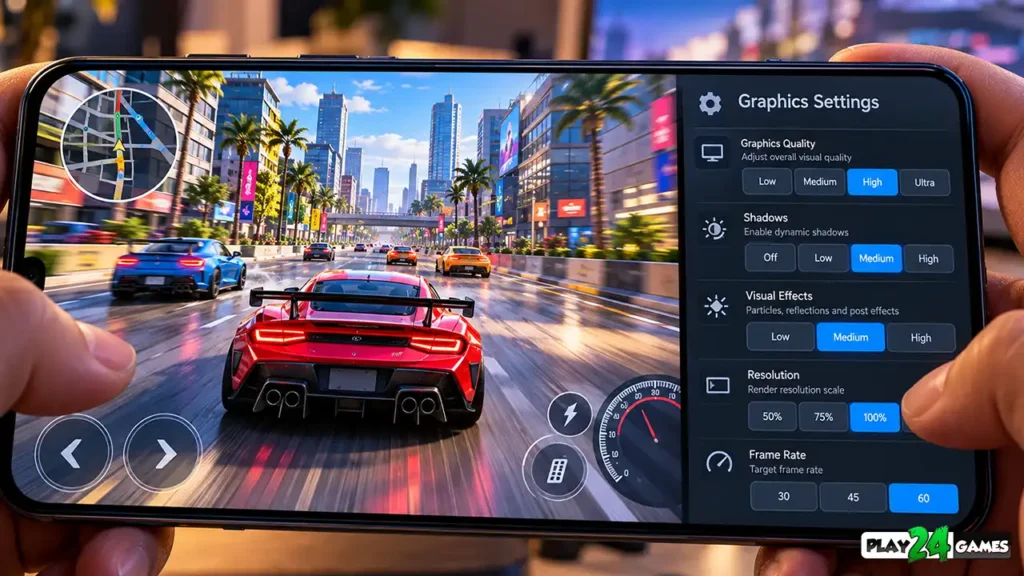
Detailed shadows, reflections, effects, and high-resolution rendering can improve visual quality.
However, these features also require processing power.
A phone that struggles with maximum settings may deliver a smoother experience with a balanced configuration.
Start With These Settings
If your game offers graphics customization, try adjusting:
| Setting | Suggested Starting Point |
|---|---|
| Graphics Quality | Medium |
| Shadows | Low or Medium |
| Reflections | Low |
| Visual Effects | Medium |
| Resolution Scale | Default or slightly reduced |
| Frame Rate | Stable 30 or 60 FPS, if supported |
These are starting suggestions rather than universal settings.
A powerful smartphone may handle higher quality without difficulty.
An older device may require more aggressive adjustments.
Why Stable FPS Matters
Imagine a racing game that frequently jumps between 25 and 55 FPS.
Even though it sometimes reaches a higher frame rate, the inconsistent movement may feel uncomfortable.
A stable 30 FPS experience can feel more predictable than an unstable higher-FPS mode.
The best configuration is the one that provides acceptable visuals and consistent responsiveness on your device.
5. Avoid Overheating During Long Gaming Sessions
Have you noticed that a game runs smoothly when you first open it but becomes slower after 15 or 20 minutes?
Heat may be part of the problem.
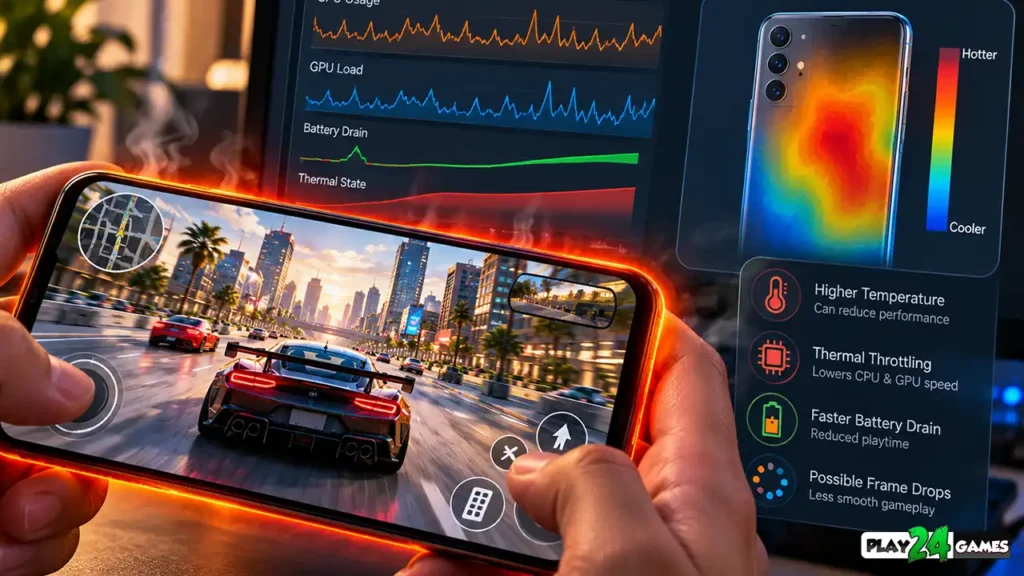
Smartphones contain powerful processors in compact enclosures.
When a demanding game continuously uses the CPU and GPU, the device generates heat.
To protect its components, the phone may reduce processing speeds.
This behavior is called thermal throttling.
Android’s official game-development guidance explains that sustained CPU and GPU workloads can increase device temperature and trigger performance reductions. Android Developers
How to Reduce Gaming Heat
Try playing in a cooler environment and keeping the phone away from direct sunlight.
If a thick protective case appears to trap heat, consider removing it during demanding sessions, provided the device can be handled safely.
Avoid placing your phone on blankets or other surfaces that retain heat.
If the phone becomes unusually hot, stop playing and allow it to cool.
Do not attempt to bypass built-in thermal protection.
Thermal management is designed to protect the device, and disabling it can create unnecessary risks.
6. Check Your Phone’s Gaming Mode
Some Android smartphones include a dedicated gaming mode.
Depending on the manufacturer, this may appear as Game Mode, Game Booster, Game Space, or another feature.
These modes can offer options related to performance, notifications, and battery consumption.
Performance Mode vs. Battery Mode
A performance-focused configuration may prioritize responsiveness while consuming more power.
A battery-focused configuration may reduce certain workloads or frame-rate targets to extend playtime.
Android’s Game Mode framework supports these general performance and battery-saving preferences, although availability and behavior depend on the device and game. Android Developers
Which Mode Should You Choose?
For a competitive racing or action game, you may prefer a performance-oriented setting.
For a relaxed simulator or casual puzzle game, a balanced setting may be sufficient.
However, selecting the highest-performance mode doesn’t guarantee better results.
If the device becomes too hot, sustained performance can still decrease.
Test the available options and compare how the game behaves over a complete session.
7. Update Your Games and Android Software
An outdated game version may contain bugs that have already been addressed by its developer.
Updates can introduce compatibility improvements, stability fixes, and gameplay adjustments.
The same principle applies to Android system updates.
How to Update an Android Game
Open the Google Play Store.
Tap your profile icon, select Manage apps & device, and review available updates.
If the game has an update available, install it and restart the application.
Google confirms that app updates can provide new features and improvements to security and stability. Google Help
Should You Always Install Updates Immediately?
Generally, keeping games and system software updated is sensible.
However, a new update isn’t guaranteed to improve performance on every device.
If problems begin immediately after updating, check the developer’s release notes and official support information.
Avoid downloading modified game files from untrusted websites as a workaround.
8. Reduce Unnecessary Background Activity
Your phone may be performing several tasks while you’re gaming.
For example, it might be downloading a large file, backing up photos, recording the screen, or running another demanding application.
These activities can compete for processing resources, memory, storage bandwidth, or network capacity.
What Should You Do?
Before starting a demanding game, check whether large downloads or uploads are running.
Pause unnecessary tasks temporarily.
If another application is frozen or consuming unusual resources, close or force-stop that particular application.
You can also disable unnecessary notifications if interruptions affect gameplay.
However, you don’t need to force-close every background application before gaming.
Android manages background processes automatically, and repeatedly closing applications may provide little benefit.
Focus on identifying activities that are actually interfering with the game.
9. Choose the Right Frame Rate
Modern smartphones may offer displays with refresh rates such as 60Hz, 90Hz, or 120Hz.
A higher refresh rate can make supported content appear smoother.
However, the display’s refresh rate and the game’s actual FPS are not the same thing.
A 120Hz screen doesn’t automatically make every game run at 120 FPS.
The game must support the frame rate, and the device must be capable of delivering it.
Is 60 FPS Better Than 30 FPS?
For fast-paced racing and action games, 60 FPS can provide smoother movement and more responsive-looking gameplay.
However, maintaining 60 FPS generally requires more rendering work than maintaining 30 FPS under otherwise similar conditions.
For some phones, a stable 30 FPS target may offer better sustained performance and battery life.
Android’s power-efficiency guidance specifically discusses the trade-offs between display refresh rates, game frame rates, and energy consumption. Android Developers
Choose a frame-rate setting based on what your game and device can sustain—not simply the highest number available.
10. Use a Reliable Connection for Online Games
Not every gaming problem comes from the phone itself.
Online multiplayer games depend on communication between the player and the game server.
An unstable connection can cause delayed actions, disconnections, and inconsistent multiplayer behavior.
Improve Your Network Connection
If you’re playing an online game, try moving closer to your Wi-Fi router.
Avoid running large downloads on the same connection while playing.
If your Wi-Fi is unstable, compare it with a reliable mobile-data connection.
Remember that connection quality involves more than download speed.
Latency, packet loss, network congestion, and server conditions can all affect online gameplay.
What About Offline Games?
Offline games generally don’t require a continuous internet connection for their core gameplay, although some may still need connectivity for advertisements, account features, or optional services.
For example, Racing Mania 2 and other Play24Games titles are part of the studio’s mobile gaming catalog.
Always check the individual game’s description to confirm whether offline play is supported.
If an offline game suffers from low FPS, changing your internet connection is unlikely to resolve the rendering problem.
11. Be Careful With Game Booster and Cleaner Apps
Many applications promise to increase FPS, unlock hidden processing power, or instantly eliminate gaming lag.
Some provide useful features, such as organizing games or managing notifications.
Others make exaggerated performance claims.
Can a Booster App Really Increase FPS?
A third-party application cannot magically upgrade your phone’s processor or graphics hardware.
It may close selected background processes or adjust settings where the operating system permits.
However, these changes don’t guarantee a measurable improvement.
Be cautious with applications that request unnecessary permissions or claim they can bypass all device performance limitations.
Also avoid modified system settings intended to disable thermal safeguards.
A safer approach is to use your phone’s built-in settings and the game’s official graphics options.
12. Test One Change at a Time
When a game starts lagging, it’s tempting to change every setting immediately.
You might reduce graphics quality, enable performance mode, close applications, and change display settings all at once.
The problem is that you won’t know which change actually helped.
A Better Troubleshooting Method
Start by identifying when the slowdown occurs.
Does it happen immediately after launching the game?
Does it appear only during crowded gameplay scenes?
Does it begin after the phone becomes warm?
Or does it happen exclusively during online matches?
Next, change one relevant setting.
Play the same level or scenario again and compare the experience.
If possible, use a built-in FPS counter or performance monitor.
Keep notes about which changes improved stability and which made no noticeable difference.
This approach helps you avoid unnecessary modifications and makes future troubleshooting easier.
Common Android Gaming Mistakes to Avoid
Even experienced mobile players can overlook simple performance issues.
One mistake is assuming that the highest graphics setting always provides the best experience.
Another is believing that more FPS automatically means smoother gameplay, regardless of frame-time consistency.
Some players also confuse internet-related delays with rendering problems.
For example, a racing game may stutter because the phone cannot render the scene smoothly, while an online shooter may appear delayed because of unstable network communication.
These issues require different solutions.
Clearing application data without checking backup or account-sync options is another mistake.
Clearing cache and clearing storage are not the same action.
Google’s Android support documentation explains that clearing cache removes temporary files, while clearing app storage can permanently delete application data. Google Help
For games that save progress locally, this distinction is especially important.
Avoid deleting game data unless you understand how your progress is stored and have confirmed that it can be recovered.
Best Settings for Different Types of Android Games
Not every game benefits from the same performance configuration.
A racing game, for example, may benefit from stable frame pacing and responsive steering controls.
An action game may prioritize consistent input responsiveness during intense encounters.
A simulation game may place greater demands on processing systems when many objects or characters are active.
A casual game may run comfortably with moderate settings while consuming less battery.
Here is a practical starting guide:
| Game Type | Main Priority | Suggested Approach |
|---|---|---|
| Racing Games | Smooth movement and responsive controls | Prioritize stable FPS |
| Action Games | Consistent responsiveness | Reduce demanding visual effects if needed |
| Simulation Games | Stable processing and memory use | Lower settings during complex scenes |
| Sports Games | Predictable animation and controls | Use a sustainable frame-rate target |
| Casual Games | Battery life and smooth interaction | Balanced graphics and power settings |
These recommendations are general starting points.
The ideal settings depend on the game’s design, your device, and the options available.
When Is It Time to Upgrade Your Phone?
Sometimes software adjustments aren’t enough.
A game may require more processing power, graphics capability, or memory than your current device can provide.
If you’ve updated the game, adjusted graphics settings, checked available storage, and addressed overheating, but performance remains consistently poor, hardware limitations may be involved.
Before buying a new phone, check the game’s published device requirements.
Also compare performance across multiple games.
If only one title has problems, the issue may be specific to that game rather than the entire device.
If several demanding games struggle in similar ways, an upgrade may provide a more meaningful improvement.
When evaluating a gaming phone, consider sustained performance, thermal design, memory capacity, battery life, and software support rather than focusing exclusively on benchmark scores.
Explore Different Mobile Gaming Experiences
Smooth performance contributes to enjoyable gameplay, but the right game also matters.
Some players prefer the speed and excitement of racing challenges.
Others enjoy sports competitions, action adventures, or relaxing simulation experiences.
At Play24Games, players can explore a collection of mobile titles across different genres.
The studio’s game catalog includes racing games, sports experiences, simulators, and action titles.
Choosing games that match your interests and device capabilities can make mobile gaming more enjoyable.
Conclusion
Improving Android gaming performance doesn’t always require complicated tools or expensive hardware.
Start with the basics.
Keep your software updated, maintain reasonable free storage, choose suitable graphics settings, and pay attention to overheating.
If you’re playing online, check connection stability separately from frame-rate performance.
Most importantly, make one adjustment at a time and evaluate whether it actually improves your experience.
The goal isn’t always to achieve the highest possible FPS. It’s to enjoy smooth, responsive, and consistent gameplay.
With the right settings and realistic expectations, you can make better use of your Android phone and spend more time enjoying your favorite games.
Frequently Asked Questions
1. How can I make Android games run smoother without installing apps?
Start by restarting your phone, updating the game, checking available storage, and lowering demanding graphics settings. If your device becomes hot during gameplay, allow it to cool. These steps can help address common performance problems without additional applications.
2. Does lowering graphics quality increase FPS?
It can, particularly when the game is limited by graphics processing. Reducing shadows, visual effects, or rendering resolution may lower GPU workload. However, the improvement depends on the actual performance bottleneck.
3. Why do Android games lag after 15–20 minutes?
One possible explanation is thermal throttling. Sustained gaming can generate heat, causing the device to reduce processing speeds. Other causes include memory pressure, background activity, or game-specific problems.
4. Is 60 FPS better than 30 FPS for Android gaming?
When supported and sustained, 60 FPS generally provides smoother movement. However, stable 30 FPS may be preferable on devices that cannot consistently maintain 60 FPS, particularly when battery life and temperature are important.
5. Does clearing a game’s cache improve performance?
Clearing cache can help resolve certain application issues, but it isn’t a guaranteed FPS improvement. Avoid confusing cache removal with clearing application storage, which may delete locally saved progress and settings.