

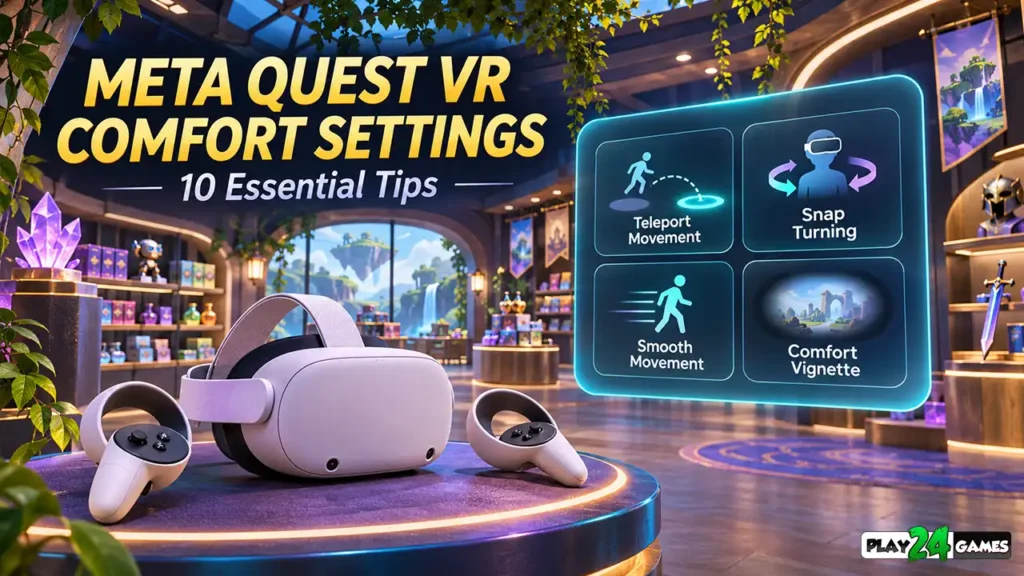
Meta Quest VR Comfort Settings: 10 Essential Tips
Virtual reality can make even simple activities feel surprisingly immersive.
Walking through a digital store, exploring a detailed environment, or interacting with virtual objects can feel very different from playing the same type of game on a traditional screen.
However, if you’re new to VR, you may notice that some games feel more comfortable than others.
A slow-paced simulation might feel natural, while a game featuring rapid movement, sudden camera turns, or intense vehicle motion could feel overwhelming.
This happens partly because your eyes and body sometimes receive conflicting movement information.
Fortunately, many VR games include settings designed to help players manage these experiences.
Understanding Meta Quest VR Comfort Settings can help you choose suitable movement options, adjust your gameplay environment, and develop more comfortable VR habits.
Whether you’re exploring your first virtual world or returning to VR after a break, these ten practical tips can help you make more informed decisions about your gameplay experience.
1. Start With Comfortable Movement Options
One of the most important aspects of VR comfort is how your character moves through the virtual environment.
Traditional video games usually move the camera using a joystick, mouse, or keyboard.
In VR, your viewpoint is closely connected to your head movement.
This creates a stronger sense of presence, but artificial movement can sometimes feel uncomfortable.
Understand the Two Main Movement Methods
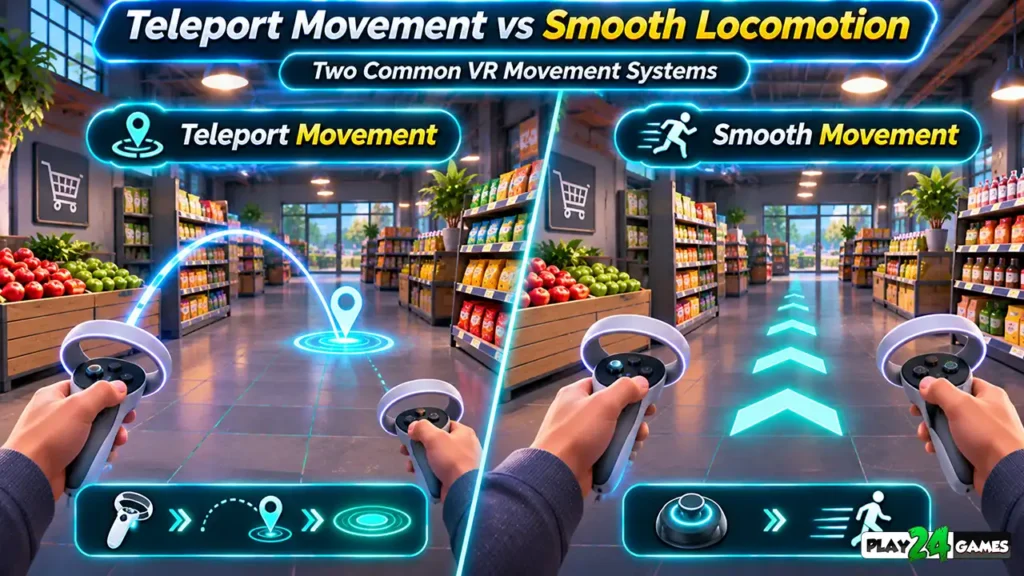
Many VR games offer two common movement approaches.
Teleport movement allows you to select a destination and move there without continuously traveling through the intervening space.
Smooth locomotion moves your character continuously through the virtual environment, usually using a controller joystick.
Which Method Should Beginners Choose?
Teleportation is often a practical starting point for players who are sensitive to artificial movement.
Smooth locomotion may feel more natural to players who are comfortable with continuous virtual movement.
Meta’s official locomotion guidance identifies teleportation as a useful technique for reducing discomfort associated with visual motion. Meta for Developers
Practical Tip: If a game offers both methods, begin with teleportation and experiment with continuous movement only when you feel comfortable.
Not every game supports both options.
2. Use Snap Turning Instead of Smooth Turning
Turning is another important comfort setting.
In many VR games, players can rotate their viewpoint using a controller.
However, different turning methods create different visual experiences.
What Is Snap Turning?
Snap turning rotates the virtual viewpoint in fixed increments.
Instead of continuously rotating the camera, the game changes direction through short steps.
For example, pressing the right joystick might rotate your viewpoint by a fixed angle.
What Is Smooth Turning?
Smooth turning continuously rotates the virtual camera while the player moves the joystick.
Some players prefer this because it feels similar to conventional first-person games.
However, continuous artificial rotation can increase discomfort for motion-sensitive players.
Recommended Starting Point
For beginners, snap turning is often a sensible option.
Meta’s locomotion guidance recommends providing different turning methods and allowing players to select the option that suits their comfort level. Meta for Developers
Practical Tip: Try snap turning first. If you later experiment with smooth turning, start with a slower rotation speed where the game allows adjustment.
3. Adjust Movement Speed Carefully
Movement speed can significantly influence how a VR game feels.
Fast artificial movement creates stronger visual motion, especially when objects pass close to your viewpoint.
Why Speed Matters
Imagine moving through a narrow virtual corridor.
Nearby walls and objects move quickly across your field of view.
This visual motion can create a strong sensation of movement even though your body is stationary.
Choose a Comfortable Speed
If the game includes movement-speed settings, begin with a moderate option.
Avoid rapidly switching between different speeds while learning the controls.
Be Careful With Acceleration
Sudden or repeated acceleration can also affect comfort.
Meta recommends limiting unnecessary acceleration and considering how movement speed interacts with the virtual environment. Meta for Developers
Practical Tip: Use consistent movement inputs and avoid repeatedly accelerating, stopping, and changing direction during your first sessions.
4. Enable Comfort Vignettes When Available
Some VR games include a setting called a comfort vignette.
This feature temporarily darkens or narrows the edges of your visible scene during movement.
How Does a Comfort Vignette Work?
When you move through a virtual environment, objects in your peripheral vision create visual motion.
A comfort vignette reduces some of that peripheral visual information.
This can make continuous movement more tolerable for certain players.
Does Every VR Game Include This Feature?
No.
Comfort settings depend on the individual game.
Some titles provide adjustable vignette strength, while others use a fixed effect or do not include the feature.
Should You Always Enable It?
Not necessarily.
Some players find vignettes helpful, while others prefer an unrestricted field of view.
The best setting depends on personal preference and the game.
Practical Tip: If continuous movement feels uncomfortable and the game offers a vignette option, try enabling it before increasing movement speed.
5. Choose Seated or Standing Gameplay Appropriately
VR games can support different physical play styles.
Some are designed primarily for seated experiences.
Others encourage standing, turning, reaching, or moving within a defined play area.
Seated Gameplay
Seated play can be useful for games involving menus, virtual workstations, vehicle controls, or other relatively stationary activities.
A stable chair without wheels is generally preferable when seated play is supported.
Standing Gameplay
Standing can feel more natural when interacting with objects positioned around a virtual environment.
However, players should maintain awareness of their physical surroundings.
Room-Scale Gameplay
Some games allow players to move physically within a tracked space.
This can create a strong sense of immersion, but it requires adequate clear floor space.
Which Option Is Better?
There is no universal answer.
Choose the mode supported by the game that best matches your physical comfort, available space, and intended activity.
Practical Tip: Check the game’s supported play modes before starting. Do not assume that every VR game supports seated and standing play equally.
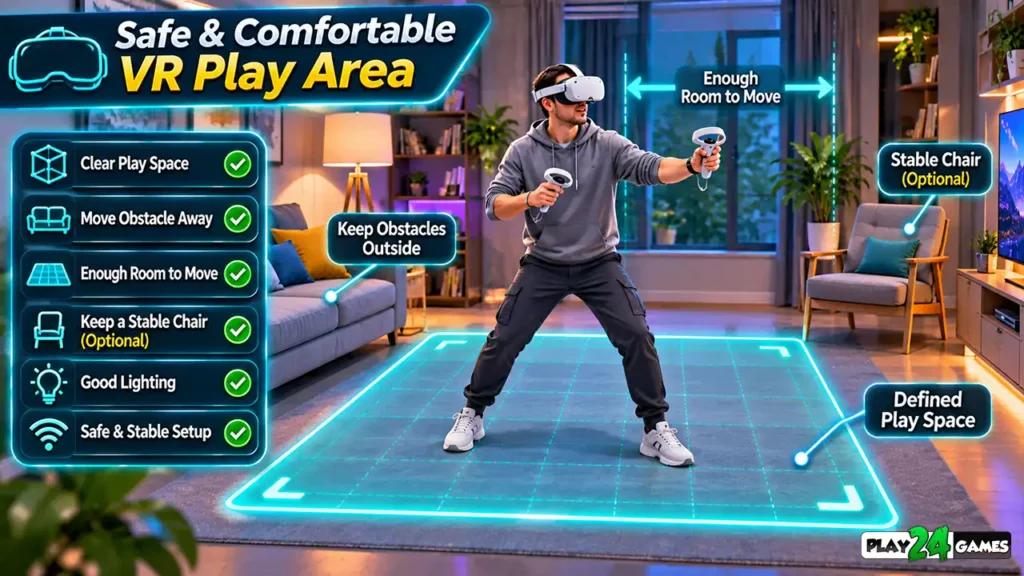
6. Prepare a Safe Physical Play Area
A comfortable VR experience begins outside the virtual world.
When wearing a headset, your awareness of nearby furniture, walls, and objects may be reduced.
Clear Nearby Obstacles
Before playing, remove objects that could interfere with your movement.
Pay particular attention to furniture corners, loose cables, and objects on the floor.
Configure Your Boundary
Use the headset’s supported boundary or space-setup features.
These systems help identify the area available for physical movement.
Avoid Reaching Beyond Your Space
Virtual objects may appear farther away than your available physical space permits.
Do not move beyond your established boundary to reach them.
Keep Other People in Mind
If other people or pets may enter the room, take additional precautions.
A clear play area can reduce the risk of accidental contact.
Practical Tip: Recheck your surroundings whenever you change rooms or significantly rearrange furniture.
7. Keep Your Viewpoint Stable
In traditional games, camera shake and dramatic movement can make action scenes feel more exciting.
In VR, those same effects may feel uncomfortable.
Why Camera Stability Matters
Your headset tracks your real head movements.
When the virtual camera moves independently, your eyes may perceive movement that your body does not physically experience.
This can create sensory conflict.
Avoid Unnecessary Artificial Camera Movement
Some games use camera shake, automatic viewpoint rotation, or scripted camera transitions.
These effects may be uncomfortable for certain players.
Maintain a Natural Viewing Position
Avoid repeatedly tilting your head or holding uncomfortable viewing angles.
If a game provides height adjustment or recentering options, use them when needed.
Watch for Tracking Problems
Unexpected viewpoint movement can also result from tracking interruptions.
If the virtual world appears unstable, stop interacting and check your headset’s tracking conditions.
Practical Tip: Prefer games and settings that allow you to control your viewpoint naturally, particularly when you’re new to VR.
8. Maintain Comfortable Visual Clarity
A clear image can make VR interactions easier to understand.
Poor visual clarity may encourage unnecessary eye strain or awkward head positioning.
Adjust Headset Fit
Position the headset according to the manufacturer’s instructions.
The display should appear reasonably clear without requiring excessive pressure on your face.
Check Lens Position
Use the headset’s supported lens-spacing adjustment.
Different users may require different settings.
Keep Lenses Clean
Follow the manufacturer’s cleaning instructions.
Avoid using unsuitable liquids or abrasive materials.
Consider In-Game Text Readability
Some games display menus or information panels inside the virtual world.
If text appears difficult to read, try adjusting your position or using available UI-distance and scaling options.
Performance Also Matters
Unstable frame delivery can introduce visible judder.
Meta’s developer guidance emphasizes consistent frame timing as an important aspect of comfortable VR experiences. Meta for Developers
Practical Tip: If a game offers graphics and performance settings, choose a configuration that maintains stable gameplay on your headset.
9. Take Breaks and Build VR Familiarity Gradually
New VR players sometimes try to play for extended periods immediately.
However, comfort varies considerably between individuals.
Begin With Short Sessions
Start with manageable gameplay periods.
Increase session length gradually only if you remain comfortable.
Recognize Discomfort Early
If you experience dizziness, nausea, eye strain, headache, or unusual discomfort, stop playing.
Do not attempt to push through symptoms.
Choose Appropriate Games
Slower experiences may be easier for some beginners than games involving rapid artificial movement.
For example, a stationary puzzle or shop-management experience may involve less continuous visual motion than a fast vehicle simulation.
However, comfort also depends on how each game implements movement, camera behavior, and interactions.
Avoid Treating VR Comfort as a Competition
Players adapt differently.
There is no requirement to use smooth locomotion or intense movement settings to enjoy virtual reality.
Practical Tip: Select settings based on your own comfort rather than copying another player’s configuration.
10. Choose VR Games That Match Your Comfort Preferences
Not all VR games use the same movement systems.
Some emphasize physical interaction within a small area.
Others involve large virtual environments, vehicles, climbing, or fast-paced action.
Consider the Game Genre
A virtual shop simulator may focus on interacting with products, organizing objects, and completing management tasks.
A racing game may involve rapid visual movement, turns, and acceleration.
An amusement-park simulation may feature rides and changing viewpoints.
These experiences can create very different comfort demands.
Review Gameplay Before Playing
Look at available gameplay footage and official descriptions.
Pay attention to whether the game uses teleportation, smooth movement, seated interactions, or vehicle-based motion.
Explore Play24Games VR Experiences
At Play24Games, we develop mobile and virtual reality games across different genres.
One of our VR titles, Store Simulator Cosplay Shop, focuses on running a virtual cosplay-themed store and interacting with a simulated retail environment.
Players interested in this type of experience can explore our VR games collection.
Before purchasing or playing any VR game, review its current supported play modes, comfort information, and available movement options.
Personalize Your Settings
If a game provides comfort presets, begin with the recommended or comfort-focused option.
Adjust individual settings gradually.
The goal is to find a configuration that supports enjoyable gameplay without unnecessary discomfort.
Common Meta Quest VR Comfort Mistakes
Several avoidable habits can make VR sessions less comfortable.
One is immediately selecting smooth movement and smooth turning without first understanding the alternatives.
Another is playing in a cluttered physical space.
Players may also overlook headset fit, continue playing after discomfort begins, or assume that every game provides the same comfort settings.
Some players focus entirely on visual quality while ignoring frame stability.
Others choose games based only on graphics without considering movement intensity.
A better approach is to review the game’s comfort options, prepare the physical environment, and adjust settings according to personal preferences.
Conclusion
Virtual reality offers a unique way to experience interactive worlds, but comfort should remain an important part of every session.
Understanding Meta Quest VR Comfort Settings can help players make better decisions about movement, turning, visual effects, play modes, and session length.
Teleportation, snap turning, comfort vignettes, stable visuals, and suitable play-space arrangements can all contribute to a more comfortable experience for some players.
However, no single configuration works perfectly for everyone.
The most useful approach is to start with comfortable options, make gradual adjustments, and stop playing if discomfort develops.
For more virtual reality experiences, explore the Play24Games VR collection and discover our growing range of interactive games.
Frequently Asked Questions
What are Meta Quest VR comfort settings?
VR comfort settings are options that may help players manage movement and visual effects. Depending on the game, these can include teleportation, snap turning, smooth movement, comfort vignettes, and play-mode adjustments.
Is teleport movement better than smooth locomotion?
Teleportation often produces less continuous artificial visual motion, making it a useful option for motion-sensitive players. However, some players prefer smooth locomotion. Comfort varies between individuals.
Can Meta Quest games cause motion sickness?
Yes. Some players experience motion-related discomfort when visual movement in VR conflicts with physical movement sensations. The likelihood varies by person, game design, and movement settings.
Should beginners use snap turning?
Snap turning is often a practical starting point because it avoids continuous artificial rotation. Players can experiment with other turning methods when they feel comfortable.
Do all Meta Quest games have the same comfort settings?
No. Comfort options vary by game. Some provide extensive locomotion customization, while others offer limited movement choices or use a fixed movement system.