
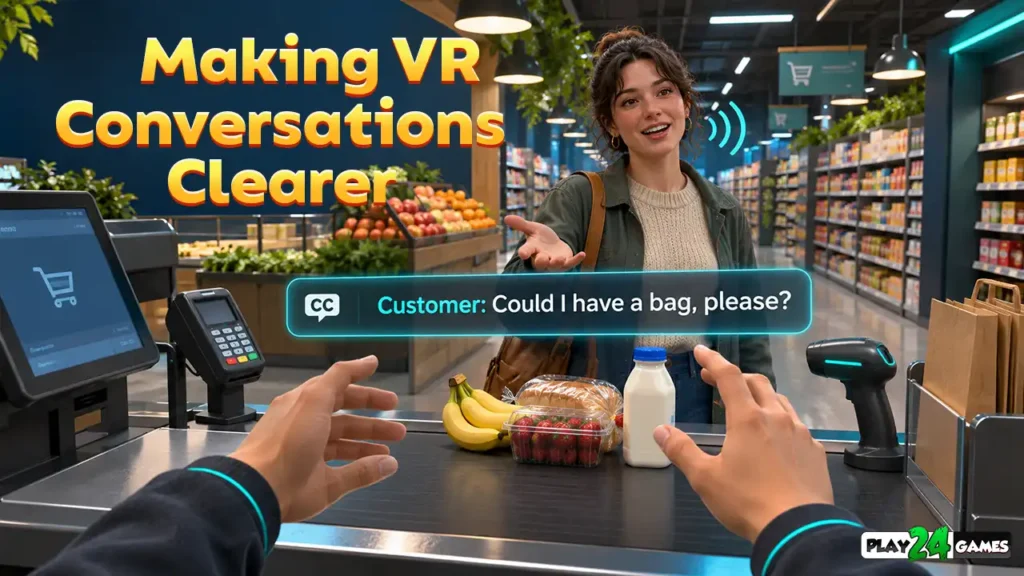
Imagine exploring a virtual supermarket on your Meta Quest headset.
You’re organizing products on a shelf when a customer approaches the checkout counter. A voice calls from behind you, asking for assistance.
But what happens if you cannot hear that voice clearly?
Perhaps you’re playing at a low volume, the environment is noisy, or you have difficulty hearing certain sounds.
Without another way to communicate the event, you might not realize that a customer is waiting.
This is where VR Game Subtitles become valuable.
Subtitles and captions can communicate spoken dialogue, important sound effects, and information that would otherwise depend on hearing.
In virtual reality, their design requires special attention. Unlike traditional games, players can look in different directions, move around environments, and interact with objects in three-dimensional space.
A caption that works on a television screen may not automatically work inside a headset.
Here are nine ways thoughtful subtitle and caption design can make VR experiences clearer, more comfortable, and more accessible.
1. Understand the Difference Between Subtitles and Captions
Although people sometimes use the terms interchangeably, subtitles and captions serve different purposes.
Subtitles primarily communicate spoken dialogue.
Captions can also describe meaningful non-speech sounds, such as alarms, footsteps, doors opening, or machinery activating.
For example, a virtual customer might say:
Can you help me find this product?
A subtitle displays the spoken words.
However, if a warning alarm begins sounding in another room, a caption could communicate:
Alarm sounding from storage room.
This distinction matters because some gameplay information is delivered through sounds rather than speech.
Microsoft’s official subtitles and captions guidelines explain the importance of communicating both dialogue and relevant audio events. Microsoft Learn
Why VR Needs Both
Virtual environments often contain sound sources positioned around the player.
A character might speak from behind a counter, while a machine produces an alert somewhere else.
Captions can help players understand these events without requiring them to locate every sound through hearing alone.
2. Position VR Game Subtitles Where Players Can Read Them
Subtitle placement is particularly important in virtual reality.
On a traditional screen, captions often appear near the bottom of the display.
In VR, players may look upward, downward, or behind themselves.
If captions remain attached to a fixed location in the virtual environment, they may disappear from view.
Head-Following Captions
One approach is to keep captions within the player’s view as their head moves.
This can make important dialogue easier to follow.
However, captions should not obstruct the player’s hands, objects, or important gameplay areas.
World-Space Captions
Another approach places dialogue near the speaking character.
This can help players identify who is talking.
But world-space captions may become difficult to read when characters are far away or outside the player’s view.
Choose Placement Based on the Experience
Meta’s VR accessibility design guidance recommends considering captions around one meter from the viewer as a starting point, offering repositioning options, and avoiding obstruction of important tasks. Meta Horizon OS Developers
These are design recommendations, not universal fixed values.
The appropriate placement depends on the game’s interface, environment, and interaction requirements.
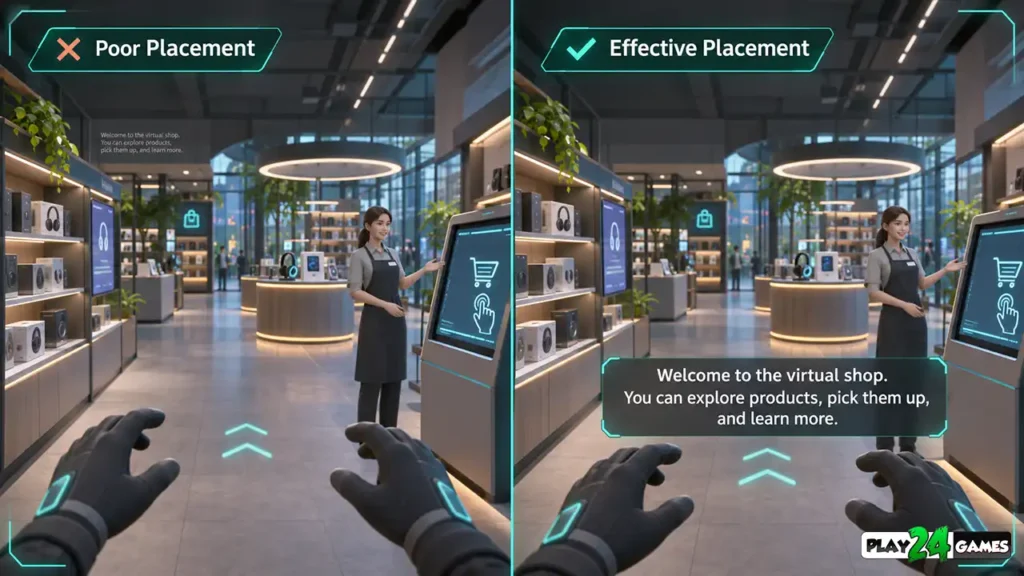
3. Make Text Readable Against Different Backgrounds
VR environments can change dramatically from one location to another.
A subtitle might appear against a dark wall, a bright shop interior, or a colorful outdoor scene.
If the text blends into the background, players may struggle to read it.
Use Strong Contrast
Light text against a sufficiently dark background can provide clear separation.
A subtle dark panel behind subtitles can improve readability when the environment contains varied colors.
Avoid Decorative Fonts
Highly stylized fonts may look attractive in promotional artwork but can be difficult to read during gameplay.
A clean sans-serif font is generally a sensible starting point.
Support Adjustable Text Size
Players have different visual needs.
Providing adjustable subtitle size can help them find a comfortable reading experience.
Microsoft’s accessibility guidance recommends readable fonts, suitable contrast, adjustable text size, and caption backgrounds. Microsoft Learn
Practical tip: Test captions in both bright and dark scenes rather than evaluating them against a single background.
4. Identify Who Is Speaking
VR environments may contain several characters communicating at once.
Imagine a virtual shop with customers near the entrance, checkout counter, and product shelves.
If multiple characters speak, subtitles without speaker identification can become confusing.
Use Speaker Names
A caption could display:
Customer: Where can I find the masks?
This gives the player immediate context.
Add Directional Information
If a character speaks from outside the player’s current view, a subtle directional indicator may help identify the source.
For example, a small arrow could indicate that the speaker is to the player’s left.
Avoid Relying Only on Color
Different text colors can help distinguish speakers, but color alone should not carry essential information.
Speaker names or other indicators provide additional clarity.
This is particularly important for players who have difficulty distinguishing certain colors.
5. Use Captions for Important Environmental Sounds
Not every meaningful event in a game involves dialogue.
A virtual amusement park might use sound to indicate that a ride has started.
A simulation game might play an alert when a task is complete.
An action game might communicate nearby danger through footsteps or machinery.
If these sounds are essential to gameplay, players should have another way to recognize them.
Practical Example: A Virtual Store
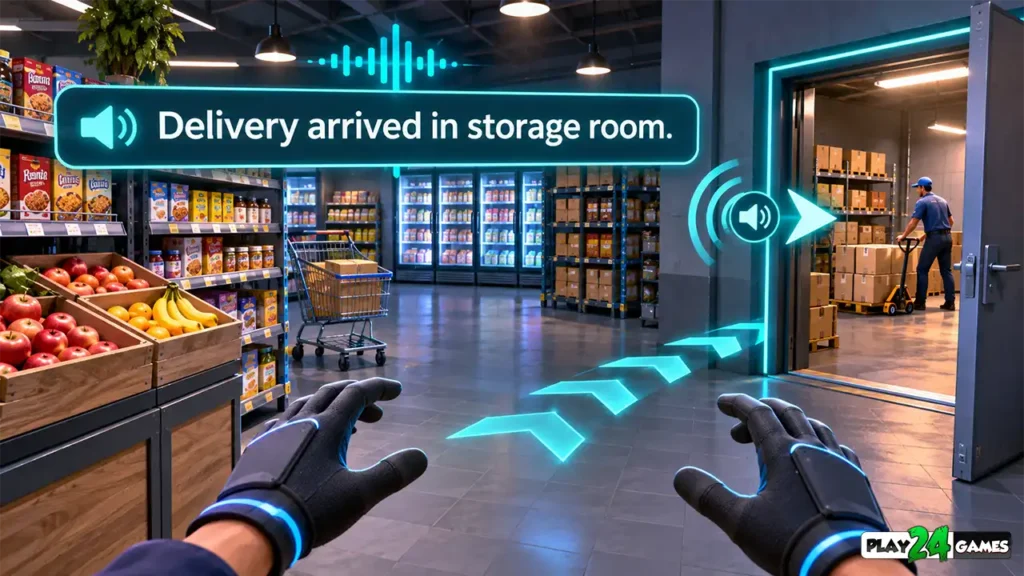
Consider an illustrative VR shop simulation.
A delivery arrives while the player is organizing shelves.
The game plays a notification sound.
A caption could also appear:
New delivery has arrived.
The game might additionally show an icon near the storage area.
This gives players multiple ways to understand the event.
Avoid Captioning Every Minor Sound
Not every ambient noise needs an on-screen description.
Constantly displaying unimportant sounds can overwhelm players.
Prioritize sounds that communicate objectives, hazards, character actions, or meaningful changes in the environment.
6. Synchronize Captions With Gameplay Events
Captions should appear at the right moment.
If text appears too early, it can reveal information before the corresponding event occurs.
If it appears too late, players may struggle to connect it with the action.
Match Spoken Dialogue
Dialogue subtitles should generally appear in synchronization with the spoken line.
Players need enough time to read the text before it disappears.
Avoid Rapid Changes
If several characters speak quickly, subtitles can become difficult to follow.
Breaking dialogue into manageable sections can improve readability.
Keep Sentences Concise
Microsoft’s caption guidelines recommend relatively short lines and avoiding excessive text on screen at once. Microsoft Learn
For VR, developers should also consider the player’s need to continue interacting with the environment while reading.
A player may be holding an object or navigating a menu when dialogue begins.
Caption timing should account for these situations.
7. Let Players Customize Subtitle Settings
Accessibility preferences are not identical for every player.
Some prefer larger captions. Others want a less prominent background.
A useful VR game can provide options that allow players to adapt captions to their needs.
| Setting | Why it helps |
|---|---|
| Subtitles On/Off | Allows players to choose dialogue text |
| Text Size | Improves readability |
| Background Opacity | Separates text from complex environments |
| Speaker Names | Identifies dialogue sources |
| Caption Position | Helps avoid important gameplay elements |
| Sound Captions | Communicates meaningful non-dialogue audio |
Not every game needs an extensive settings panel, but important options should be easy to find.
Make Settings Available Early
Players should ideally be able to enable captions before encountering important spoken information.
For example, a game with an introductory cinematic should not require players to finish that cinematic before accessing subtitle settings.
Remember Player Preferences
Where supported, games should preserve accessibility settings between sessions.
This avoids requiring players to configure the same options repeatedly.
8. Combine Captions With Visual and Haptic Feedback
Captions are valuable, but they should not be the only method used to communicate every event.
A well-designed VR experience can combine text, visual indicators, and controller feedback.
Visual Confirmation
When a player completes a task, a clear icon or objective update can confirm success.
Haptic Confirmation
Compatible motion controllers can provide vibration feedback for selected interactions.
For example, placing an item on a shelf could trigger a subtle pulse.
Audio Confirmation
A short sound may reinforce the same action for players who can hear it.
These systems complement one another.
For more on tactile interaction, see our Meta Quest haptic feedback guide.
For spatial sound design, explore the related Play24Games article on Meta Quest spatial audio, after confirming its current URL in the WordPress archive.
The objective is to make essential gameplay information understandable through more than one sensory channel.
9. Test Captions Inside a Real VR Headset
Subtitle layouts that appear readable on a desktop monitor may feel different inside a VR headset.
Text distance, visual clarity, head movement, and environmental lighting all influence readability.
Test While Standing and Seated
If the game supports both play styles, captions should remain accessible in each.
Test During Real Interactions
A caption may look perfect when the player is standing still but obstruct a product or button during active gameplay.
Test common interactions while captions are visible.
Test Without Audio
One of the most useful checks is to play the game with the sound muted.
Can you understand objectives, dialogue, and important warnings?
Meta’s Quest audio accessibility recommendation specifically discusses playing through an application without audio and checking that relevant information remains available. Meta Horizon OS Developers
Test With Different Players
Developers familiar with their own games may already know what every sound means.
New players do not have that advantage.
Observing people who have not previously played the game can reveal missing captions or confusing feedback.
VR Subtitles in Simulation Games
Simulation games offer many useful opportunities for accessible communication.
In a virtual supermarket, captions might identify customer dialogue, delivery notifications, and important checkout events.
In an amusement park simulation, captions could communicate ride announcements or relevant safety instructions.
In a virtual workshop, they might identify machinery alerts or task-completion messages.
These are illustrative examples rather than claims about features currently implemented in specific Play24Games titles.
For readers interested in immersive shop-management experiences, our VR shop simulator gameplay guide explores the interaction systems commonly found in this genre.
The important design principle is that players should understand the main objective even when they cannot depend on audio.
Common VR Subtitle Mistakes to Avoid
Placing Captions Too Far Away
Text positioned deep inside the environment may become difficult to read.
Test viewing distance on the target headset.
Covering Important Interactions
Captions should not block objects, hands, menus, or other essential information.
Using Tiny Text
Small captions may look elegant in screenshots but become difficult to follow during gameplay.
Missing Environmental Cues
Dialogue subtitles alone may not communicate important alarms, notifications, or other non-speech sounds.
Displaying Too Much Text
Long paragraphs can distract players from active gameplay.
Use concise, readable text and appropriate timing.
Ignoring Accessibility Settings
Players should not have to accept one fixed subtitle style when reasonable customization is possible.
Assuming System Captions Cover Everything
Platform-level captioning capabilities and individual game implementations differ.
Developers should verify whether essential game events are actually communicated, rather than assuming the operating system automatically captions every interaction.
What Players Should Look for in VR Accessibility Settings
When starting a new Meta Quest game, check whether it offers subtitle or caption settings.
If available, review text size, contrast, background appearance, and speaker identification.
Try a short gameplay section with captions enabled.
Pay attention to whether the text stays readable while you move and whether important sound-based events have visible alternatives.
If you rely on captions for accessibility, review the game’s official feature information before purchasing.
Microsoft’s accessible feature documentation guidance emphasizes the value of clearly describing supported accessibility features so players can make informed choices. Microsoft Learn
Remember that caption support varies by title. A headset’s system-level accessibility features do not guarantee that every game provides complete in-game captions.
Conclusion
VR Game Subtitles are more than an optional text feature. They can help players understand dialogue, recognize important sound-based events, and follow objectives inside immersive virtual environments.
Effective captions need thoughtful placement, readable typography, appropriate timing, clear speaker identification, and customization options.
For Meta Quest games, these details matter because players interact with three-dimensional environments rather than a fixed screen.
At Play24Games, we continue exploring mobile and virtual reality experiences, including immersive simulation games. Understanding accessibility principles is an important part of creating better experiences for a wider range of players.
Frequently Asked Questions
Do all Meta Quest games support subtitles?
No. Subtitle and caption availability depends on the individual game and its implementation. Some games offer extensive accessibility settings, while others provide limited or no in-game caption support.
What is the difference between VR subtitles and closed captions?
Subtitles primarily represent spoken dialogue. Closed captions can also communicate important non-speech audio, such as alarms, footsteps, and environmental sounds.
Where should subtitles appear in a VR game?
They should remain readable without blocking important gameplay. Depending on the experience, captions may follow the player’s view or appear near a speaking character. Adjustable positioning is useful.
Can Meta Quest system captions replace in-game subtitles?
Not necessarily. System features and in-game caption systems may have different capabilities. Developers should verify that critical dialogue and audio events are communicated correctly in their specific application.
Are subtitles useful for players without hearing difficulties?
Yes. Captions can help when playing at low volume, in noisy environments, or when dialogue is difficult to understand. They can also reinforce important gameplay information.