

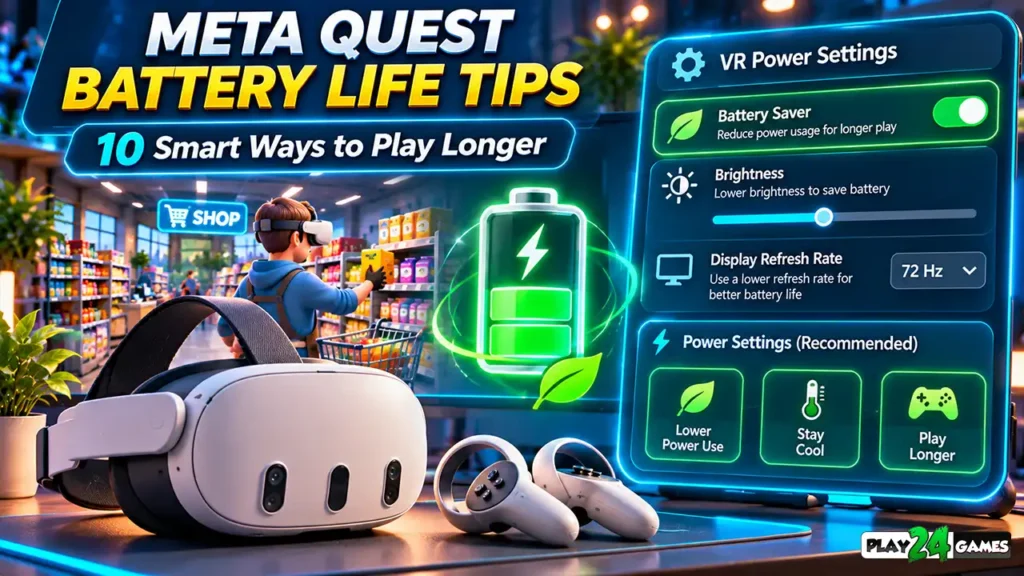
Meta Quest Battery Life Tips: 10 Smart Ways to Play Longer
Imagine spending your evening exploring an immersive virtual world.

You’re organizing products inside a VR supermarket, customizing a virtual shop, or enjoying an exciting amusement park experience.
Everything feels engaging until a low-battery warning appears.
Suddenly, you have to stop playing and think about charging your headset.
For owners of Meta Quest 3 and Meta Quest 3S, battery life is an important part of the overall gaming experience.
Unlike traditional PC gaming, standalone VR headsets contain their own displays, processors, tracking systems, and rechargeable batteries.
These components work together to create immersive experiences, but they also consume power.
According to Meta’s published device comparison, Quest 3 provides approximately two hours of battery life, while Quest 3S provides approximately two and a half hours under its stated usage assumptions. Actual runtime varies depending on applications, settings, and usage conditions. Meta for Developers
Fortunately, several practical adjustments can help players manage power consumption more effectively.
These Meta Quest Battery Life Tips cover system settings, charging habits, headset maintenance, and gaming-session planning.
Whether you’re exploring a VR simulation or playing an action game, understanding these techniques can help you make better use of your headset.
1. Enable Meta Quest Battery Saver Mode
One of the most useful built-in power-management features is Battery Saver mode.
Meta Quest includes this setting to reduce power consumption by adjusting certain display and processing behaviors.
How to Enable Battery Saver
On supported Quest software versions, navigate to:
Settings → General → Power → Battery Saver
Enable the option when conserving battery power is more important than using the headset’s maximum available performance.
What Does Battery Saver Change?
According to Meta’s documentation, Battery Saver can make several adjustments.
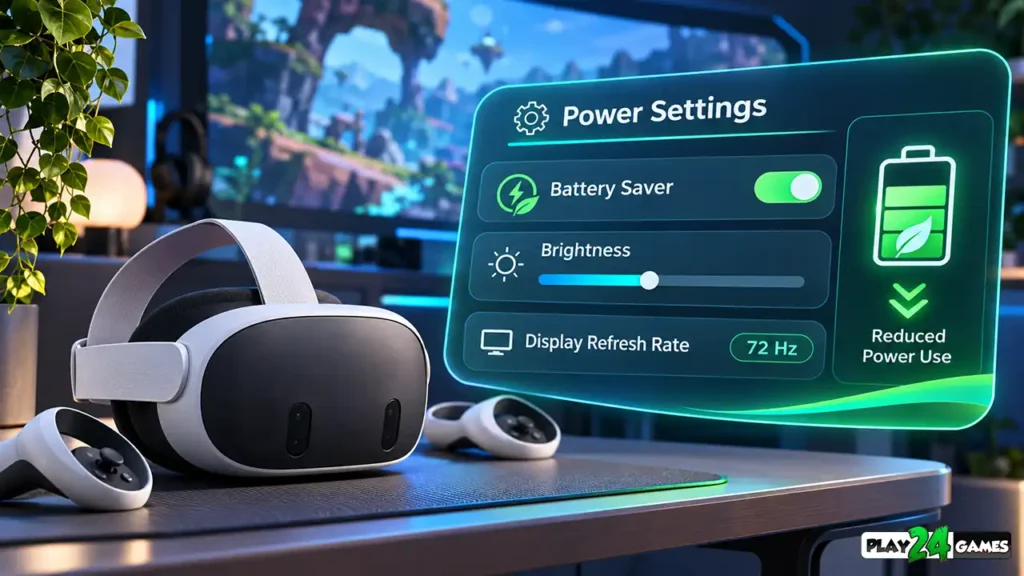
Display brightness is reduced toward 40%.
The display refresh rate is lowered to 72 Hz.
Fixed foveated rendering is enabled at level 3, reducing rendering work toward the edges of the image.
Certain CPU and GPU performance boosts are also disabled.
These changes reduce overall power demand, although the exact battery-life improvement depends on the application and headset. Meta for Developers
When Should You Use It?
Battery Saver may be useful when you’re browsing VR menus, exploring slower-paced experiences, or trying to complete a session with limited remaining charge.
However, reduced performance can affect some demanding games.
If you notice unusual stuttering or reduced visual clarity, compare the experience with Battery Saver disabled.
Practical Tip: Use Battery Saver when it improves your overall experience, not simply because the option exists.
2. Adjust Headset Brightness to a Comfortable Level
Display brightness contributes to a VR headset’s power consumption.
Many players leave brightness at a relatively high setting without considering whether they need it.
Find a Comfortable Balance
Open the headset’s display or quick settings and review the brightness control.
Reduce brightness gradually until the image remains clear and comfortable.
Avoid setting it so low that important gameplay details become difficult to recognize.
For example, a brightly lit virtual supermarket may remain easy to navigate at a lower brightness level.
However, a dark exploration game might require a different setting.
Don’t Sacrifice Visibility
Lower brightness isn’t automatically better.
The objective is to reduce unnecessary power consumption while preserving visibility and comfort.
Also remember that Battery Saver already manages brightness. Manually adjusting brightness can affect its automatic brightness behavior.
Meta’s April 2026 documentation explains that manual brightness adjustments interrupt the gradual brightness reduction applied by Battery Saver. Meta for Developers
3. Stop Unnecessary Casting and Recording
Meta Quest allows players to share their VR experiences through casting and video recording.
These features are useful when demonstrating gameplay or showing friends what you’re experiencing.
However, they can introduce additional processing and wireless activity.
When Casting Is Useful
Imagine showing a family member how a virtual shop-management game works.
Casting the headset view to another screen allows them to follow your gameplay.
In that situation, the feature serves a clear purpose.
When to Turn It Off
If you’re playing alone and don’t need to share your screen, stop unnecessary casting.
Similarly, avoid leaving gameplay recording active when you don’t intend to capture footage.
The exact battery savings are not fixed, but reducing unnecessary workloads is a reasonable power-management practice.
Keep the Right Features Enabled
Don’t disable important tracking, boundary, or safety features in an attempt to conserve power.
A small potential reduction in power consumption isn’t worth compromising the headset’s safe operation.
4. Use Sleep Mode During Short Breaks
Not every gaming session happens without interruptions.
You might pause to answer a message, get some water, or take a short rest.
During these moments, leaving an active game running unnecessarily can continue consuming power.
Understand Sleep Mode
Meta Quest supports sleep behavior that reduces activity when the headset isn’t being used.
The proximity sensor helps the headset detect when it has been removed.
Meta’s developer documentation confirms that disabling this sensor can keep the device active and reduce battery life. Meta for Developers
Make Breaks Part of Your Routine
When taking a short break, allow the headset to enter sleep mode.
Check that it has actually stopped displaying active gameplay.
Avoid placing the headset where an object could interfere with its proximity sensor.
Why This Matters
A brief interruption may not seem important.
However, repeatedly leaving the headset active between sessions creates avoidable power consumption.
Sleep mode is useful for short interruptions, while fully shutting down the headset may be more appropriate for longer periods of inactivity.
5. Power Off Your Headset When You Finish Playing
Sleep mode and a complete shutdown serve different purposes.
Sleep mode helps you return to the headset relatively quickly.
Powering off is more appropriate when you don’t plan to use the device again soon.
Develop a Simple Routine
After finishing a VR session, exit the game and shut down the headset if you won’t need it for an extended period.
Don’t assume that briefly pressing the power button has completely switched off the device.
Use the headset’s power menu when you want a full shutdown.
Consider Background Activity
Depending on system settings, a headset in standby may perform background tasks.
These activities can be useful for updates and other device functions.
However, if you don’t need the headset immediately available, a complete shutdown can help avoid unnecessary standby consumption.
Long-Term Storage
If you won’t use the headset for a long period, Meta recommends storing it at approximately 50% battery charge in a room-temperature environment.
Avoid storing the headset in excessively hot or cold locations. Meta
6. Keep Your Meta Quest Software Updated
Software updates can introduce improvements to device functionality, compatibility, and system behavior.
For that reason, keeping your headset updated is an important maintenance habit.
Check for Available Updates
Open your headset settings and locate the software update section.
The exact menu location may vary with the installed version of Meta Horizon OS.
Follow the on-screen instructions when an update is available.
Why Updates Matter
An update may address known bugs or improve how certain system functions operate.
However, not every update increases battery life.
Some updates introduce features that change power consumption or application behavior.
Update Your Games Too
Check for updates to the VR games you play regularly.
Game developers may release fixes addressing performance, compatibility, or other technical issues.
Meta’s official battery-life guidance recommends keeping headset software current. Meta
Practical Tip: Install updates when you have sufficient battery power and time to complete the process.
7. Keep Your VR Headset at a Suitable Temperature
Temperature affects the operation of electronic devices, including standalone VR headsets.
Meta Quest uses processors, displays, batteries, and cooling systems inside a compact enclosure.
During demanding gaming sessions, these components generate heat.
Avoid Excessive Heat
Don’t leave your headset in direct sunlight, inside a hot vehicle, or near a heat source.
Avoid covering ventilation areas while the device is operating.
Understand Thermal Management
Meta Horizon OS monitors temperature and can adjust device performance when thermal limits are approached.
These protective adjustments may affect frame rate or loading behavior.
Meta’s September 2026 thermal-management documentation explains that sustained heavy workloads can lead to performance throttling. Meta for Developers
What Should Players Do?
If the headset becomes unusually hot, displays a temperature warning, or behaves abnormally, stop using it and follow the manufacturer’s guidance.
Don’t attempt to bypass thermal protections.
Also avoid improvised cooling methods involving moisture or extreme temperatures.
A suitable indoor environment is better for both device operation and player comfort.
8. Use Appropriate Charging Accessories
Charging equipment matters when maintaining a rechargeable headset.
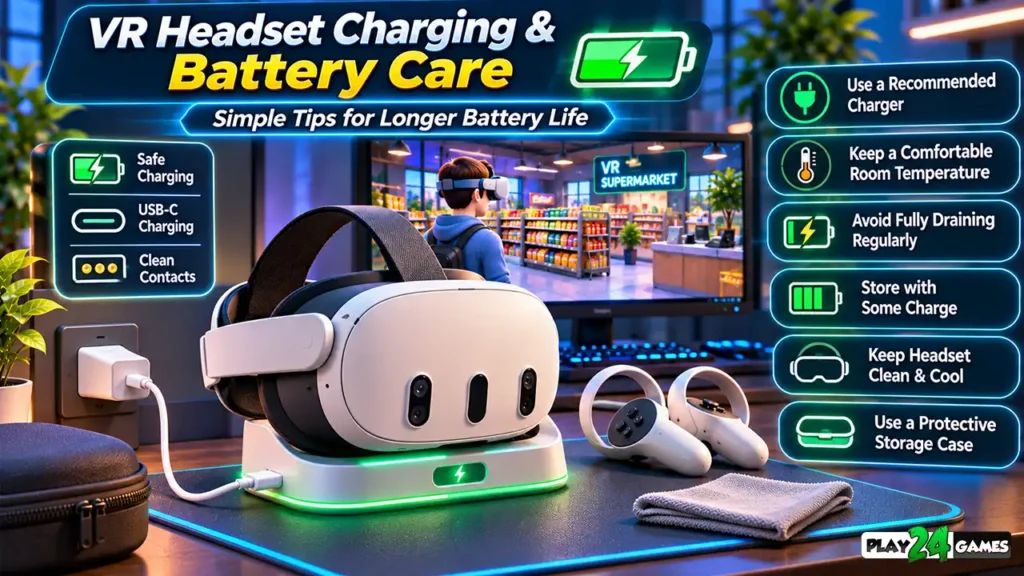
Meta recommends using the charger supplied with the device.
Why the Original Charger Matters
The included charging equipment is designed and tested for the headset.
An unsuitable charger or damaged cable may create charging problems.
Meta’s official guidance specifically recommends using the supplied charger for optimal compatibility. Meta
Check the Charging Cable
Before charging, inspect the cable and connector.
Avoid using equipment with visible damage.
Make sure the charging connection is secure and that the cable isn’t being sharply bent.
What About Charging Docks?
Compatible charging docks can provide a convenient place to store and charge the headset.
If your charging dock uses magnetic contacts, keep them clean and dry.
Follow the manufacturer’s instructions for maintenance.
Avoid Unsafe Charging Habits
Don’t use damaged charging equipment or continue charging if the headset, connector, or adapter shows signs of overheating or damage.
If charging repeatedly fails, consult Meta Quest Support rather than experimenting with unverified repairs.
9. Consider Compatible Extended-Battery Accessories
Some players want longer sessions than the headset’s internal battery can provide.
Compatible external battery accessories may help extend the available playtime.
Battery-Equipped Head Straps
Certain head straps include an additional battery.
These accessories can provide extra power while also changing how the headset’s weight is distributed.
However, comfort, charging behavior, and compatibility differ between products.
Check Compatibility Carefully
An accessory designed for one Quest model may not fit another.
Before purchasing, verify that it supports your specific headset.
Also check the manufacturer’s charging instructions and safety information.
Remember the Trade-Offs
An additional battery can increase weight and affect headset balance.
It also introduces another component that must be charged and maintained.
A longer gaming session isn’t automatically a better one.
Players should still take breaks when needed and avoid continuing if they experience discomfort.
Important: Extended-battery accessories add available power; they don’t necessarily reduce the headset’s underlying energy consumption.
10. Plan Your VR Gaming Sessions Around Battery Life
The final Meta Quest Battery Life Tips recommendation is to make battery management part of your normal gaming routine.
This doesn’t require complicated monitoring.
A few simple habits can make your sessions more predictable.
Check Battery Before Starting
Before launching a game, review the headset’s battery level.
If you’re planning a longer session, allow enough charging time beforehand.
Consider the Game You’re Playing
Different VR experiences can place different demands on the headset.
A visually demanding action game may use more processing power than a simple menu-based experience.
However, actual battery consumption depends on the game’s implementation, display behavior, system settings, and hardware.
Example: Planning a VR Simulation Session
Imagine you’re preparing to play a virtual shop-management game.
You want to organize merchandise, decorate your store, and complete several management tasks.
Before starting, you check the battery level and make sure the headset is comfortable.
If conserving power is a priority, you consider Battery Saver mode.
You also stop any unnecessary recording or casting.
During the session, you take breaks when appropriate.
After finishing, you exit the game and shut down the headset.
These habits don’t guarantee a particular runtime, but they can reduce avoidable interruptions.
How Long Does Meta Quest Battery Life Last?
Battery life varies between headset models and usage conditions.
Meta’s published device comparison provides the following approximate figures.
| Headset | Published Approximate Battery Life |
|---|---|
| Meta Quest 3 | Around 2 hours |
| Meta Quest 3S | Around 2.5 hours |
These are general device estimates, not guaranteed gaming-session durations.
Actual results depend on the game, headset settings, battery condition, and other factors. Meta for Developers
Why Do Different Games Consume Different Amounts of Power?
VR games vary in graphical complexity and processing requirements.
A detailed environment may contain dynamic lighting, animated characters, physics interactions, and complex visual effects.
These systems can increase processing demand.
Meta’s technical documentation confirms that CPU and GPU performance levels affect power consumption, and higher processing speeds generally require more energy. Meta for Developers
However, players shouldn’t assume that a game with simple graphics always consumes less power.
Actual behavior depends on how efficiently the application is implemented.
Common Meta Quest Battery Mistakes to Avoid
Several habits can make battery management less effective.
One mistake is leaving casting or recording enabled when it isn’t needed.
Another is leaving the headset active during long interruptions.
Players may also use unsuitable charging equipment or ignore temperature warnings.
Some users enable Battery Saver and assume it will improve every game equally.
In reality, power-saving settings can introduce performance and visual-quality trade-offs.
Another common misunderstanding is confusing battery runtime with long-term battery health.
Reducing power consumption during a gaming session is different from preserving battery capacity over months or years.
Meta notes that lithium-ion batteries naturally lose capacity over time and with use.
For long-term storage, appropriate charge levels and temperature conditions matter.
The best approach is to combine sensible power settings with safe charging and storage habits.
Quick Meta Quest Battery Life Tips Checklist
| Area | Recommended Action |
|---|---|
| Battery Saver | Enable when conserving power is the priority |
| Brightness | Use a comfortable level |
| Casting | Stop when unnecessary |
| Recording | Disable when not capturing gameplay |
| Short Breaks | Allow the headset to sleep |
| Long Breaks | Power off when appropriate |
| Software | Keep the headset and games updated |
| Temperature | Avoid excessive heat and blocked ventilation |
| Charging | Use suitable, undamaged equipment |
| Accessories | Verify model compatibility |
| Gaming Sessions | Check battery level and take breaks |
These recommendations are intended to improve battery management, not promise a specific increase in playtime.
Enjoy VR Simulation Games on Meta Quest
Battery management becomes particularly useful when players want to spend time exploring detailed virtual environments.
VR simulation games can involve activities such as organizing products, managing virtual businesses, customizing spaces, and interacting with objects.
For example, Play24Games’ Store Simulator Cosplay Shop on Meta Quest includes an anime-inspired retail environment where players manage merchandise, organize shelves, decorate their shop, and work toward business progression.
The game’s official listing also describes Friki World, an amusement park area featuring virtual attractions. Meta
Players interested in this type of experience can explore the Play24Games VR Games Collection.
Remember that individual games have different performance characteristics, and no specific battery-life result is claimed for Play24Games titles.
Conclusion
Managing Meta Quest battery life doesn’t require complicated technical knowledge.
Small changes to headset settings and everyday habits can help players use their devices more efficiently.
Enabling Battery Saver when appropriate, adjusting brightness, stopping unnecessary casting, and allowing the headset to sleep during breaks are practical starting points.
Safe charging, suitable temperatures, and regular software updates also contribute to responsible headset maintenance.
The most useful Meta Quest Battery Life Tips balance power consumption with comfort and gameplay performance.
Rather than focusing only on the longest possible session, aim for a VR experience that remains enjoyable, comfortable, and reliable.
At Play24Games, we continue creating mobile and virtual reality gaming experiences, including immersive simulation games for Meta Quest.
Visit our VR Games page to explore our projects and discover new virtual worlds.
Frequently Asked Questions
How can I extend Meta Quest 3 battery life?
Start by enabling Battery Saver when appropriate, adjusting display brightness, stopping unnecessary casting, and allowing the headset to sleep during breaks. Keep software updated and use suitable charging equipment.
Does Battery Saver reduce Meta Quest performance?
Yes. Meta’s Battery Saver mode reduces certain display and processing demands. It can lower brightness, limit refresh rate to 72 Hz, apply fixed foveated rendering, and disable some performance boosts. The effect on gameplay varies between applications.
How long does Meta Quest 3S battery last?
Meta’s published device comparison lists approximately 2.5 hours of battery life for Quest 3S. Actual runtime depends on usage conditions, game demands, device settings, and battery condition.
Is it safe to charge Meta Quest while playing?
Charging behavior and supported accessories depend on the headset and equipment. Follow Meta’s instructions for your model and avoid damaged cables, unsuitable chargers, or charging situations that cause excessive heat. Don’t assume every third-party accessory is safe or compatible.
Does lowering brightness improve VR headset battery life?
Lower brightness can reduce display power consumption. However, the actual improvement depends on the headset, application, and other settings. Keep brightness high enough for clear, comfortable gameplay.